

1. Prepare a workspace and authentication table
A login form needs a backend that checks credentials and provides a way to authenticate later requests. Twidget can generate these workflows from an authentication table. This guide covers customer accounts for the app you are building; those accounts are separate from your own Twidget dashboard login.
You need access to a workspace where you can configure tables and endpoints. Use a dedicated test workspace or clearly labelled sample records. Prepare two sample customer accounts so you can check access between users. Avoid entering real customer passwords or copying tokens into screenshots.
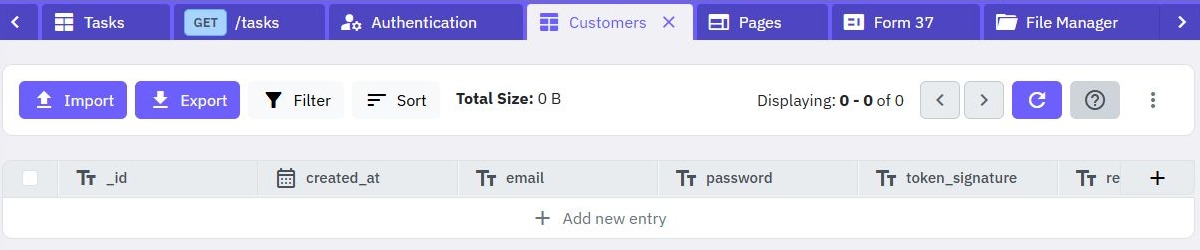
Create a users table, selecting Enable in its Authentication Table setting, or designate an existing table in its configuration. A workspace can have one authentication table. Review any existing choice before changing it, especially when other workflows already depend on it.
2. Generate the account workflows
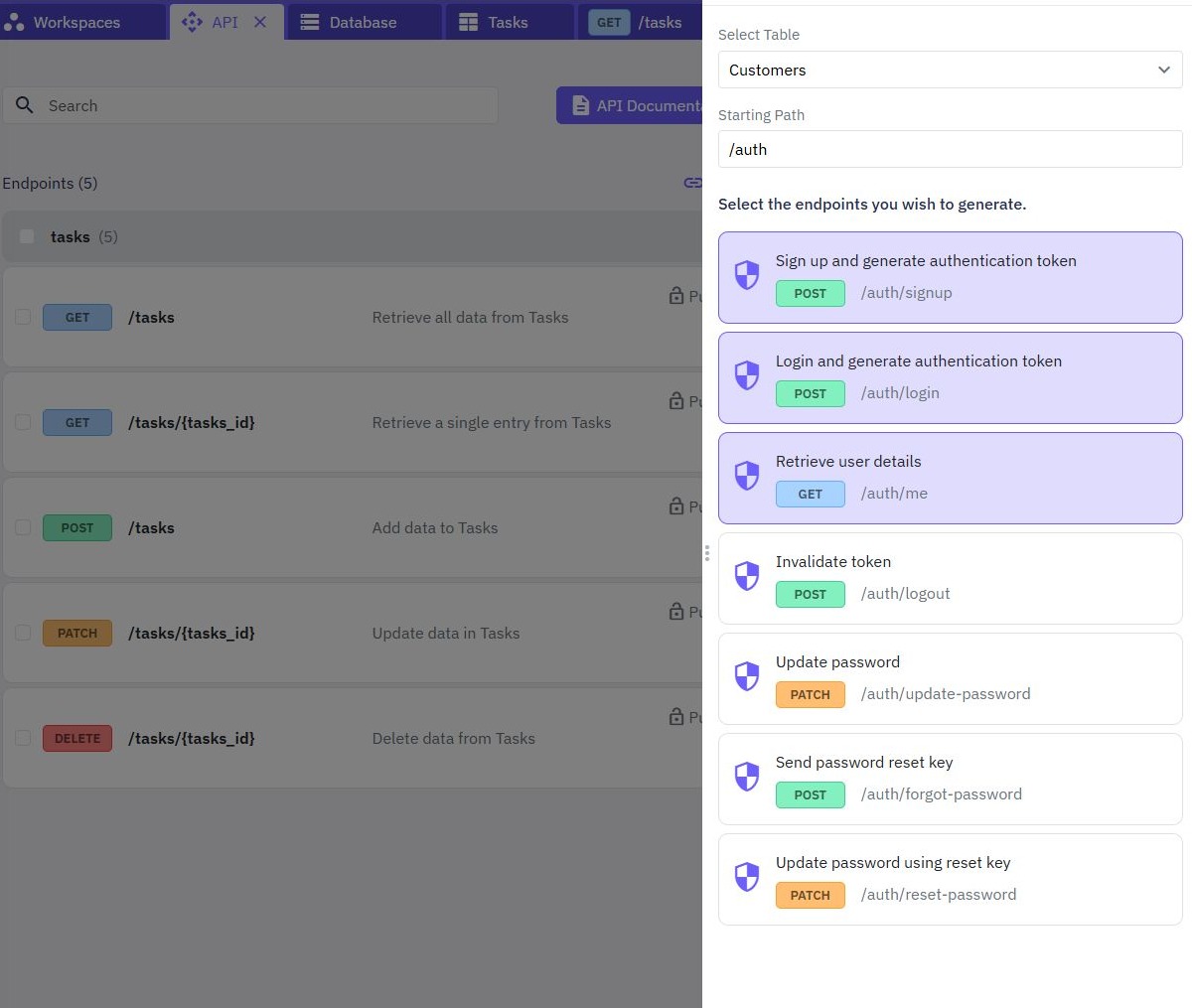
Open API, start endpoint creation and choose Authentication. Select the authentication table and a starting path. Using /auth as the base gives a clear place for account operations.
The documented generator includes signup, login, current-user details, logout, password update, password-reset request and password reset. The familiar example paths are /auth/signup, /auth/login and /auth/me. Your configured base path determines the actual URLs.
Open each generated endpoint and review its inputs, commands and output. Generation supplies a starting configuration, but your application still needs decisions about allowed profile fields, account messages and which endpoints require authentication. Keep signup and login callable by people who do not yet have a token; protect operations that act on an existing session.
The authentication table contains sensitive account fields. Do not generate a public, unrestricted CRUD API for it or return entire account records to a frontend.
3. Test signup and login with sample accounts
In the builder, use Run & Test with the required inputs shown on the generated signup endpoint. The Test sidebar defaults to isolated data; it does not establish a customer account in your live users table. For a live account and token check, deliberately select Use live data in the dedicated test workspace, or use the published endpoint through the API client. Inspect those definitions before constructing a request; edits to generated workflows can change their contract. An illustrative email-and-password body looks like this:
{
  "email": "sample-user@example.com",
  "password": "REPLACE_WITH_A_UNIQUE_TEST_PASSWORD"
}
Use a real, unique test password privately rather than the placeholder. Check that one sample account is created, then test login using that account. Inspect the configured output to find the authentication token. Do not assume a token property name without checking the endpoint.
Test incorrect credentials, missing inputs and a repeated signup. Check that the client can show a useful message without receiving password hashes, reset keys or internal account fields. Publish the reviewed workflows before checking them through the API client.
4. Protect a resource and send a bearer token
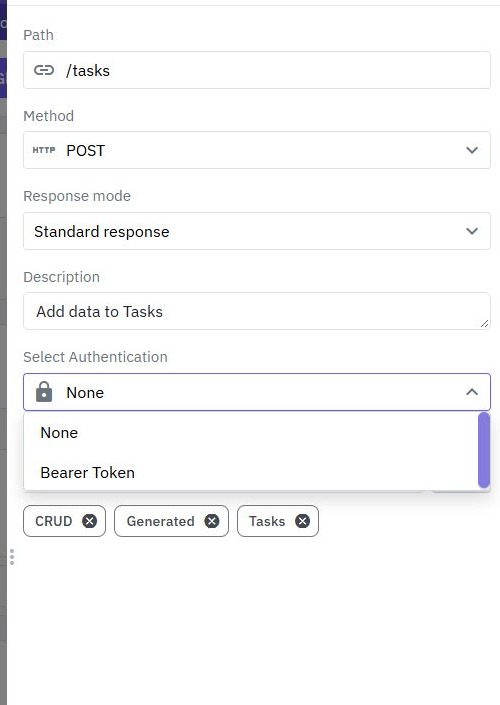
Choose a resource endpoint, such as the task-list endpoint from the REST API guide, and enable its authentication requirement. A protected request supplies the token in this header:
Authorization: Bearer YOUR_TEST_TOKENIn the API client, select the protected endpoint and configure authentication for the request. Send it first without a token and then with the token issued to your sample customer. The unauthenticated request should be denied; the valid session should reach the permitted workflow.
Authentication answers who is calling. It does not by itself restrict records to that caller. For personal tasks, associate each task with the signed-in customer's identifier and include that ownership condition in reads, edits and deletes. Derive identity from the authenticated customer context, rather than trusting a customer ID submitted in the body.
5. Check logout and password recovery
Try the generated logout operation and confirm the old token can no longer access a protected resource. Use a sample mailbox you control for password recovery. The reset-request flow should give a generic success message rather than disclose whether an address is registered.
Current account commands include Request Customer Password Reset, Reset Customer Password and Change Customer Password. The reset flow uses an email, reset key and new password. Reset keys expire and are single-use. A password change for an authenticated customer requires the current password and should take the customer ID from the signed-in context.
Test a wrong key, a reused key and an incorrect current password. Successful reset or password change revokes existing sessions, so the interface should ask the customer to sign in again. Email delivery and message configuration also need checking in your own workspace before promising a working recovery experience.
6. Connect a login screen and verify isolation
In Pages, create a login page using your generated login endpoint. The documented page generator includes email and password inputs, message blocks and a submission function. Review the function's token handling and add navigation to the appropriate application page after successful login.
Generated login pages use browser local storage for their token. Treat browser scripts and third-party embeds accordingly, keep tokens out of URLs, and do not publish screenshots containing them. Test the visible logged-out state as well as a successful login.
Finally, create a task as customer A, sign in as customer B and try to read or change it. Any unintended success means the ownership rules need work. Continue with the task-management guide for forms and lists, or explore how the pieces fit in a no-code backend.
Go deeper
Supporting documentation
Find the configuration details and reference material behind this page.