

Start with one job your user needs to finish
A web application combines an interface with data and behavior. A task tracker needs a form to create a task, a list to show existing tasks and account rules that keep each person’s work separate. Twidget provides a page builder alongside the database and API tools needed to connect those screens.
Begin with a small journey: sign in, create a task and see it appear in the list. Once that works, add editing, filters or attachments. The task-management app guide follows this kind of complete project, so you can evaluate the connection between page elements and backend workflows.
Choose a generated form or build a custom layout
Use a form page generator when you already have an endpoint to receive the submission. Generate login and signup pages from the matching authentication endpoints. For a screen that needs a different structure, create a custom page with its own name and path.
Add elements with the drag-and-drop interface and organize them through the layout structure. Layout choices include headers, sidebars, modals and drawers. Page variables and path or query parameters let the same interface respond to different records or navigation states. Decide which information the screen needs before adding controls: a task editor, for example, needs the selected task’s identifier and its current field values.
Connect a button click to a visible result
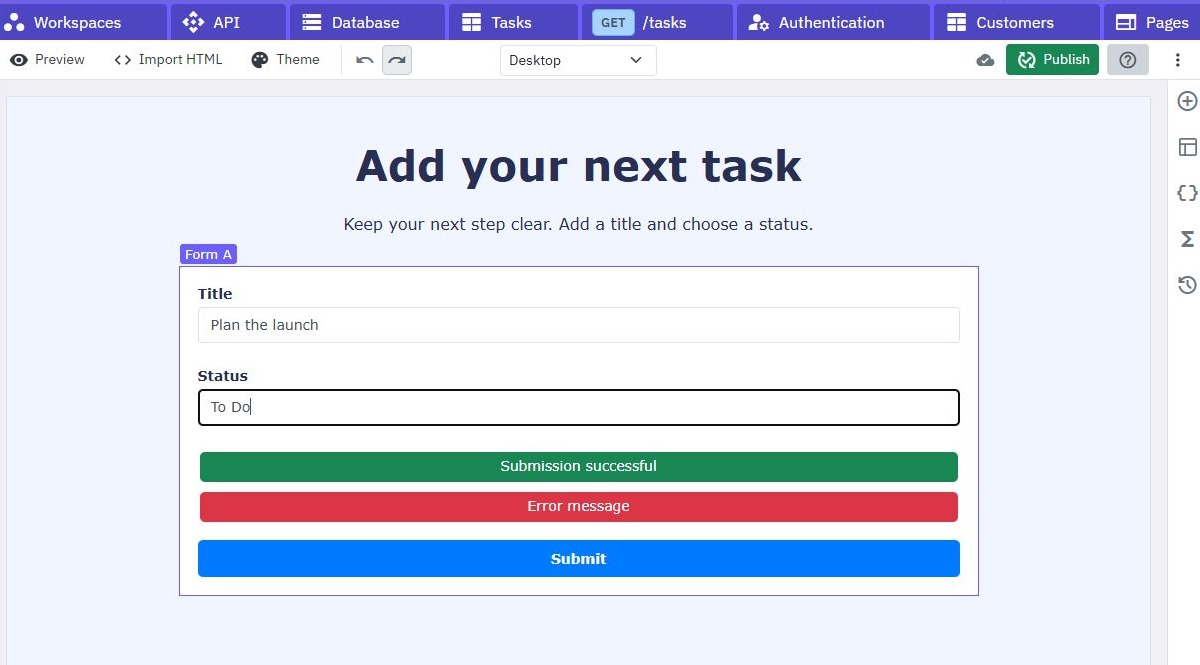
Forms collect values through named inputs such as text fields, dropdowns and checkboxes. A page function handles the submission and performs the actions you configure. Connect it to the appropriate endpoint, then show the user whether the action succeeded or needs attention.
For a create-task form, send the title to the backend, handle validation errors, and update the visible list after success. Keep form inputs within the form so their values are included in its submission. Give the user a clear response when an input is missing or a request fails; a button that appears to do nothing makes an otherwise working app difficult to use.
Dynamic data sources and field mappings help populate controls such as dropdowns from lists of objects. This lets a project selector show readable names while sending the corresponding record values.
Make account screens part of the application’s rules
Generated login pages connect to a login endpoint and include fields, messages and a submission workflow. Signup pages provide the corresponding registration starting point. You can adapt the flow and choose where a customer goes after signing in.
Protect the data as well as the screen. The backend must identify the customer and enforce access to each record. Test a direct API request as well as the page journey to verify that one customer cannot retrieve or change another customer’s tasks. The signup and login guide explains the account workflow, while the backend overview shows how authentication and data fit together.
Preview the complete journey before publishing
Use the page preview to check layout and behavior before publishing. Test the journey with sample records, an empty list, invalid form values and a failed request. Check the published page in a browser too, including the screen sizes your customers use. Publishing makes the page available at its generated URL.
Twidget suits interactive, data-driven applications where you want to build pages and server workflows together. Layout, accessibility, permission rules and useful error messages still need deliberate design and testing. If you need to keep an existing frontend, use the API builder to supply its backend instead.
Review current plans and allowances, then build one working journey before expanding the application. The practical test is whether a customer can complete the task you designed the app to solve.
Go deeper
Supporting documentation
Find the configuration details and reference material behind this page.