

1. Start with a small API contract
A REST API gives an application URLs it can call to read or change data. In this example, a task has a title and a status. Start with two operations: create a task and list tasks. A small contract is easier to test than a complete project-management backend.
You need a Twidget account, access to a workspace and permission to create database tables and endpoints. Use sample records in a workspace intended for testing. Check your current workspace and usage allowances before creating extra resources; the pricing page explains the available plans.
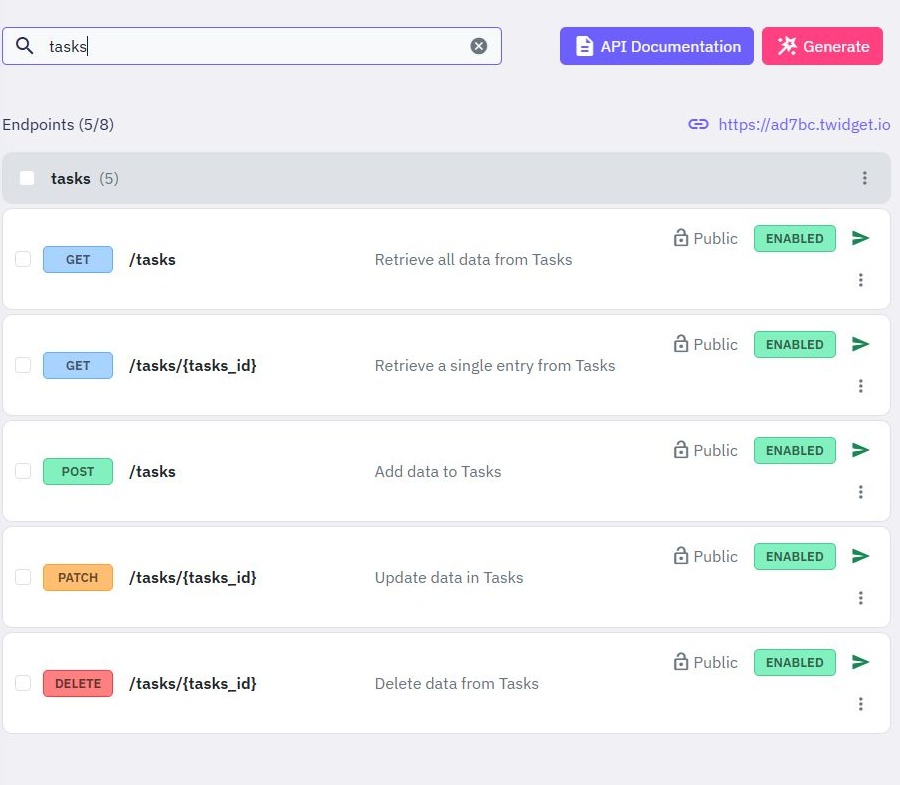
Our example uses POST /tasks to create a task and GET /tasks to retrieve a list. These are paths you choose, rather than universal Twidget URLs. Use the full endpoint address shown in your own workspace when connecting another application.
2. Create a table for task records
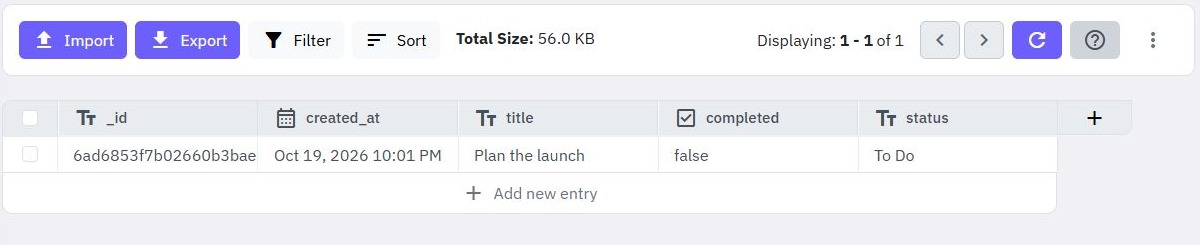
Open the database area and create a table named tasks. Add text fields named title and status. Twidget also supplies system fields such as _id and created_at; you do not need separate fields to duplicate them.
For this first version, agree on three status values: To Do, In Progress and Complete. A text field alone does not enforce that list. Add validation in the workflow if the API must reject other values. Likewise, decide whether an empty title is acceptable before allowing writes.
Table creation offers Generate CRUD Endpoints. You can use that shortcut and follow the CRUD API guide, or create the two custom endpoints below to understand each part yourself. Avoid generating duplicate paths for the same operation.
3. Define the create endpoint
Open API, start endpoint creation and select the custom-endpoint option. Give the endpoint a descriptive name, choose POST and use the path /tasks. In its inputs, add body fields named i_title and i_status for the task title and status. Mark inputs required where they are necessary.
Body fields are available to commands as $body.i_title and $body.i_status. Add a Save Data command, select the tasks table and map those inputs to the corresponding table fields. Use the saved record as the source for the endpoint output.
Illustrative request body for the fields configured here:
{
  "i_title": "Review the homepage copy",
  "i_status": "To Do"
}
Return only the fields your client needs. In the Output editor, select RESPONSE to configure a success status such as 201. Leaving it blank uses 200. Response settings affect successful responses; they do not replace error handling.
4. Add the read operation
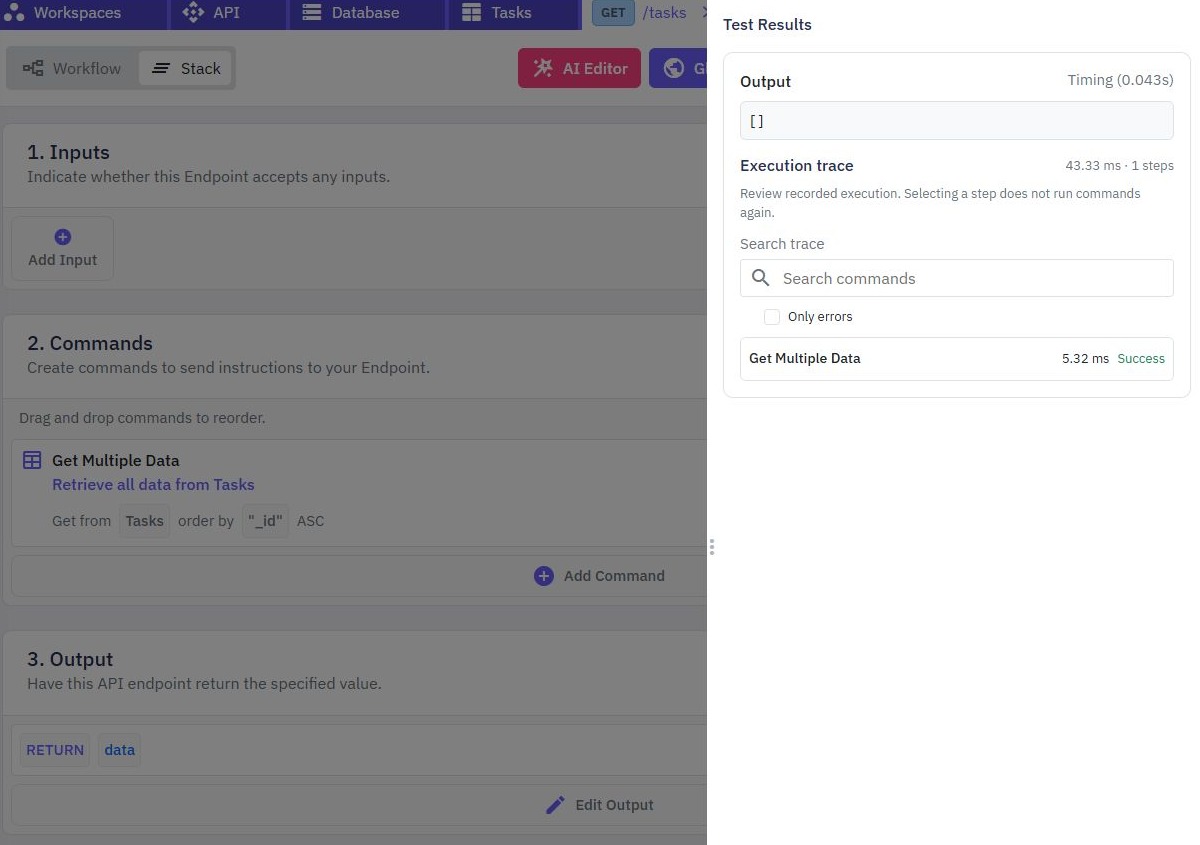
Create another custom endpoint using GET /tasks. Add Get Multiple Data, select the tasks table and return the resulting collection. In the command's Output tab, use Fields to return to select title, status and any identifiers your interface needs.
Choose a stable response shape. For example, you could expose a JSON object containing a tasks list rather than having the frontend depend on every field in the stored record. This is a design choice you configure, not an automatic response guarantee.
Before the dataset grows, decide how to bound the result and apply filters. A query parameter such as status only filters data after you connect $queries.status to the database query. Adding an input does not automatically change the query.
5. Test inputs, outputs and access
Use Run & Test in the builder to try a valid task and inspect the returned record. Add assertions for the fields your frontend expects. Repeat with a missing title, an unsupported status and an empty table. Decide the intended result for each case rather than accepting any successful response.
Choose whether the endpoints should be public or protected. A private task API should require authentication, and a multi-user application also needs queries that restrict records to their owner. A valid token alone does not establish who may read a particular task. Follow the signup and login guide before exposing personal data.
The Test sidebar uses isolated data by default. An isolated read may return an empty list even when the workspace table contains records. Enable Use live data only when you intentionally want to read or change the workspace table: the sidebar warns that changes affect live data. For that check, use disposable records and remove only what you created. If a step fails, enable execution tracing for a fresh test to locate the failing command.
6. Publish and call the endpoint
When the workflow behaves as intended, open Publish, review the change and publish it in the current workspace. Builder edits and published behavior are separate; a successful draft test is not proof that an external request uses your latest changes.
Open the API client, choose the endpoint from the path dropdown, configure the method and body, then select Send. Inspect the status, headers and body. Confirm a created task also appears through the read endpoint. For protected endpoints, repeat without a token and check that access is denied.
If the live response differs from the builder test, check the workspace, published version, request method and body field names. You now have the basic pattern used throughout Twidget's no-code API builder. Continue with the task-management app to give these operations an interface.
Go deeper
Supporting documentation
Find the configuration details and reference material behind this page.