

1. Define a focused first version
A small task app is a useful way to learn how a page communicates with a backend. The first version here contains a task form and a list of saved tasks. It does not attempt assignments, notifications or collaboration until saving and retrieving records works reliably.
You need a workspace with access to database tables, endpoints and Pages. Use non-sensitive example tasks. The initial shared-list example is suitable for learning; if tasks should be private, add the account and ownership rules described below before making the app available to others.
Use a two-column layout on wider screens: form on the left, task list on the right. Plan a single-column layout for smaller screens so labels and controls remain readable. The web app builder overview explains how Pages connects these interface and backend pieces.
2. Create the task table and endpoints
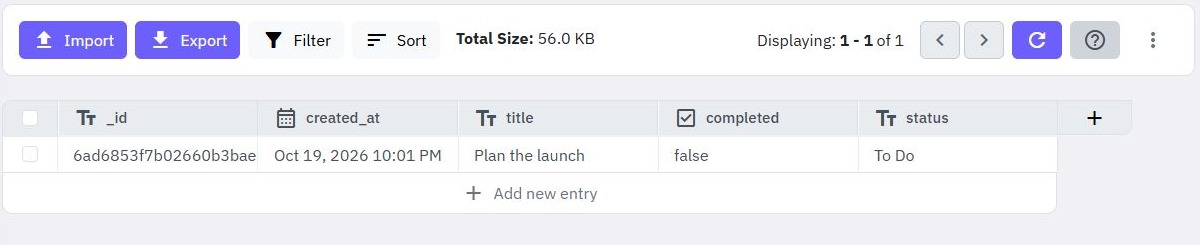
Create a tasks table containing a text title and a text status. Use the statuses To Do, In Progress and Complete. Twidget supplies a record identifier and creation timestamp automatically.
Set up one GET endpoint to retrieve tasks and one POST endpoint to create them. The CRUD generator guide provides a shortcut; the REST API guide shows how to configure the commands yourself. Return the fields your page needs and keep the response shape consistent.
Test and publish the endpoints before connecting the page. Builder tests use isolated data by default; enable Use live data deliberately if checking the actual table. Submit one disposable task through the published API and retrieve it again to verify the live connection. Enforce required titles and allowed statuses in the server workflow as well as the form. Interface controls improve the experience, but callers can bypass them and send requests directly.
3. Add the task submission form
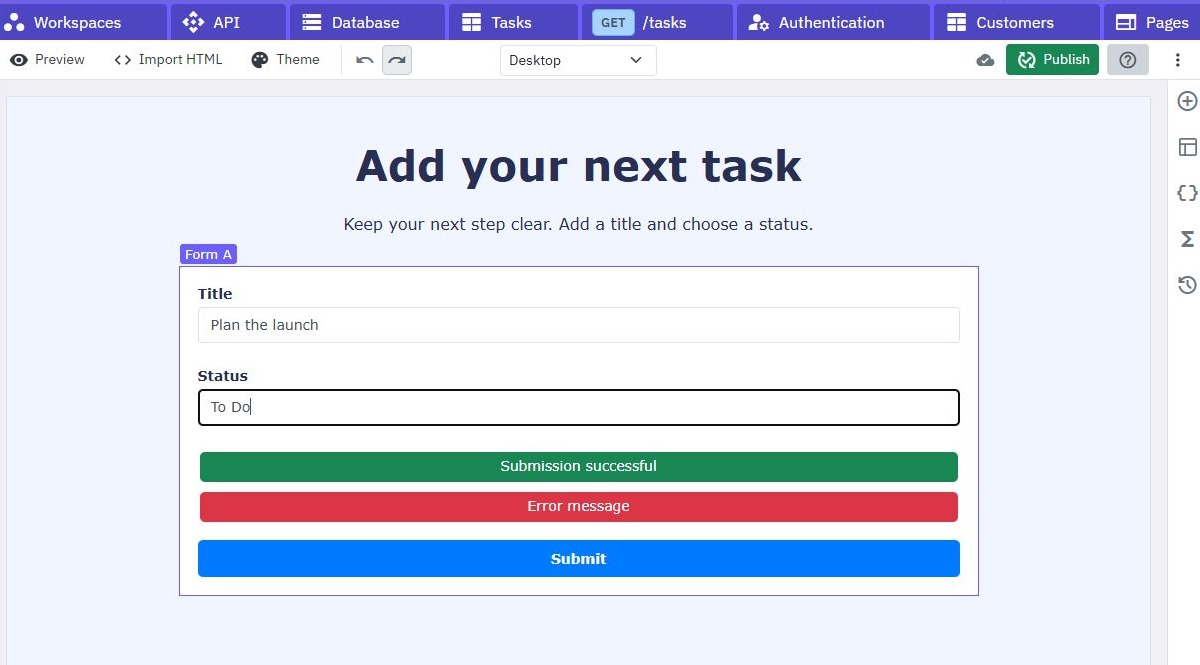
In Pages, create a page for the task app and add the main layout. Add a Form, a Text Input for title, a Dropdown for status and a submit button. Give the inputs meaningful field names such as title and status. Map them to the endpoint body inputs, such as generated i_title and i_status, rather than assuming the form and API use identical names.
Configure the dropdown with the three statuses. Keep the title and status inputs inside the form: only nested inputs are included in the form submission payload. The submit button must be associated with the form's submission action.
Connect that action to a page function that reads the submitted values and calls the create-task endpoint. Show a visible error when the request fails. Clear the title only after a confirmed success, so a transient error does not erase what the user typed. Use a loading state to make it clear when a request is still running.
4. Populate a page variable and list loop
Create a page variable named tasks that holds a list. Add a get tasks page function that calls the read endpoint and assigns the returned collection to this variable. If the response wraps the collection in an object, select the list property rather than assigning the whole response.
Add a List Loop and set its data source to the tasks variable. Inside the loop, add text elements bound to the current item's title and status. The loop provides item and index variables for each repeated record.
Run the get-tasks function when the page loads. After creating a task successfully, call it again to reload the list. This straightforward refresh makes the saved database state the source of truth and avoids appending duplicate items when a response is retried.
Add separate empty, loading and error messages. An empty list should invite the user to create a task; a failed request should explain that tasks could not be loaded.
5. Add accounts if tasks are personal
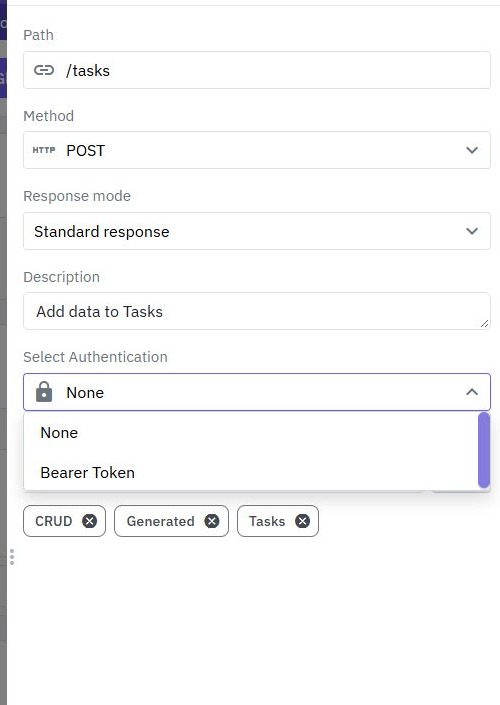
For a personal task manager, create customer signup and login workflows using the authentication guide. Protect the task endpoints and associate each task with the signed-in customer. Derive that owner from authenticated context when saving the task.
Filter every task query by that customer, including later edit and delete operations. Do not rely on a hidden page element or a customer ID supplied by the browser to enforce ownership. Test that customer B cannot access a task created by customer A.
A generated login page can connect to your login endpoint and store the authentication token for later requests. Check the submission function, request authentication and logged-out state together. A successful login screen is only one part of a working private app.
6. Verify the complete user journey
Preview the page and create a sample task. Check its title and status in the list, then reload the page to confirm persistence. Try a blank title, a failed request and an empty database. On a small screen, make sure the form comes before the list and each control remains easy to use.
If the list is blank, inspect the GET response and the variable assigned to the loop. A JSON object is not a list. If a form value is missing, check its field name and whether the input is nested inside the form. If a live request uses old logic, confirm that the backend workflow has been published.
Only add editing, deletion or reminders after this basic journey is dependable. Use the scheduled workflows guide for a background summary, and the file-upload guide when tasks need attachments. Each addition should keep the same record-ownership policy.
Go deeper
Supporting documentation
Find the configuration details and reference material behind this page.