
1. Split one task into three useful steps
Use a service-request form with three stages: contact details, request details and review. Ask only for what is needed to submit that request. A progress label such as Step 2 of 3: Request makes the user's place explicit. This is a pattern built from page variables, forms and page functions, rather than a claim that Twidget supplies a dedicated multi-step wizard starter.
Prepare synthetic input such as Sample Requester, requester@example.com and Demo equipment enquiry. Define the required fields and expected errors before connecting an endpoint. Use the web-app builder overview for the page/backend relationship.
2. Create page state and step containers
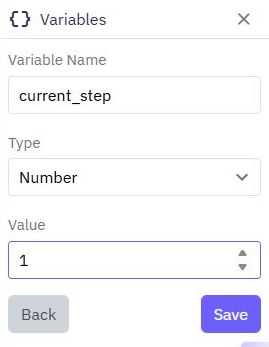
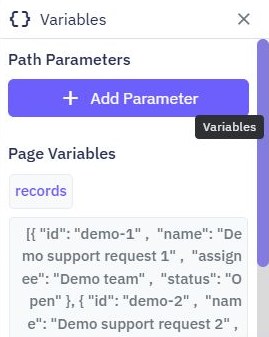
In the page editor create a page variable for the current step, initially 1, and a draft value containing the fields collected across steps. Arrange the page into separate step containers. Use the element visibility settings to show the container matching the step variable, and display the current step in a text element.
Keep user-entered draft values separate from the last saved server record. Page state is not automatically a durable draft: decide whether a reload restarts the form or restores an intentionally saved draft. Do not place confidential values in browser storage merely to preserve them. The page-variable documentation explains page scope and visibility bindings.
3. Save each step before moving forward
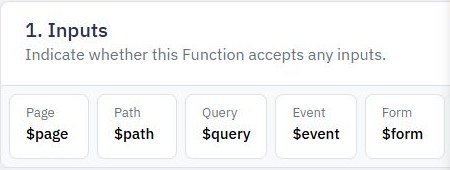
Give each input a meaningful field name and keep it nested in its step's form. On Next, run a page function that reads that form's values, checks the step's required inputs and merges valid fields into the shared draft before advancing the step. A later step's submission will not automatically include inputs from a different form.
On Back, preserve the current values before moving to the previous step. Refill inputs from the draft when returning. Make Next and Back navigation actions rather than accidental final submissions. On the review step show the merged draft, with an Edit route to the relevant earlier step. Avoid collecting the same field twice under different names.
4. Submit the complete validated draft
Only the final Submit action calls the save endpoint. Send the intended fields from the merged draft; resolve authenticated identity on the server where needed. The backend must independently validate all required values, lengths, supported choices and ownership. A caller can bypass frontend steps and call the endpoint directly.
While saving, show progress and prevent repeated clicks. If the save fails, retain the draft and display an actionable error beside the affected field or in a clear summary. Clear the draft only after a confirmed successful result. For uncertain responses, use a deliberate retry strategy so the same request is not saved twice. The request-validation guide covers server checks.
6. Publish a form people can finish
Keep labels visible, make the active step obvious and give errors readable text. When a step changes, check that keyboard focus reaches a useful heading or input; visibility changes alone may leave focus in a hidden control. Ensure the review screen gives enough context to submit deliberately.
Publish the reviewed page and endpoint, then repeat one successful request and one rejected input on the released URLs. Apply the pattern to a booking request or purchase request only when the extra steps make the task easier. A short form with two fields usually needs clear labels more than additional screens.
Go deeper
Supporting documentation
Find the configuration details and reference material behind this page.