

1. Design the table before generating endpoints
CRUD means create, read, update and delete: the common operations behind a contact list, product catalogue or task tracker. Twidget can generate the commands, inputs and outputs for these operations from an existing database table. The generated workflows remain editable.
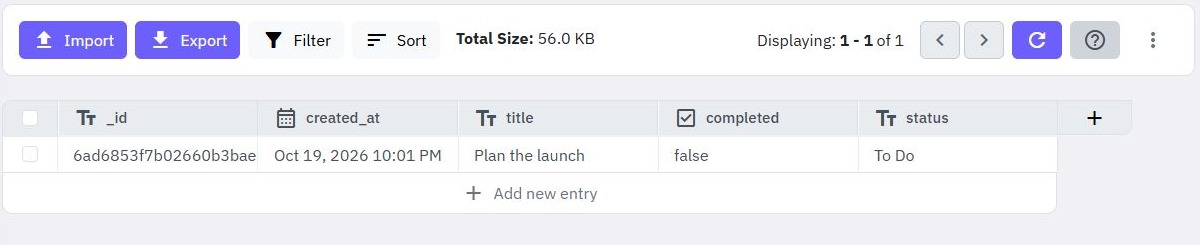
This example uses a small tasks table with text fields named title and status. You need a Twidget workspace with permission to manage tables and API endpoints. Use sample data and check the table before running any delete or update request.
Twidget supplies each record's _id and created_at. Keep your own fields focused on application data. Decide which fields the client may set, which it may read and whether each record belongs to a particular customer. Do not use an authentication table for an unrestricted CRUD example.
2. Generate the operations you need
For a new table, the creation form includes Generate CRUD Endpoints. This is a convenient starting point when you know you want a data API immediately. If you already have a table, open API, start endpoint creation and choose CRUD Operations.
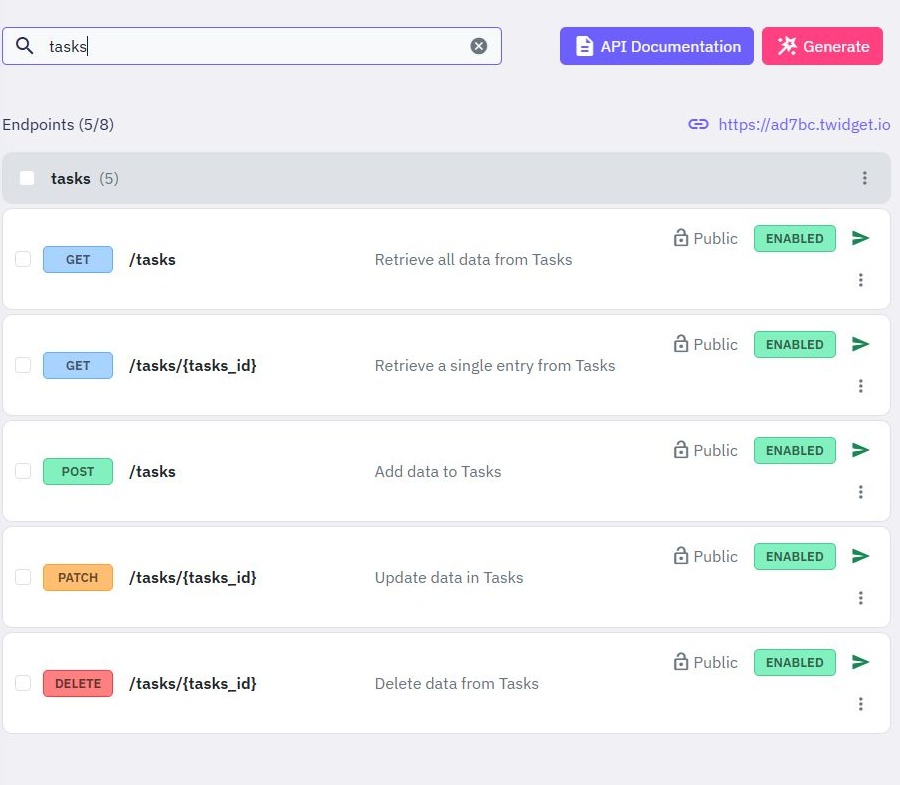
Select the tasks table and enter a starting path such as /tasks. Choose the required operations: Get for a list, Get Single for one record, Create, Edit and Delete. You do not need to expose every operation. A public catalogue, for example, might expose reads while keeping writes private.
Review the generated path and method for every endpoint. The documented operation mapping uses POST for creation, GET for reads, PATCH for edits and DELETE for deletion. Use the actual generated configuration when you build a client rather than guessing a URL or identifier input.
3. Review inputs, queries and returned fields
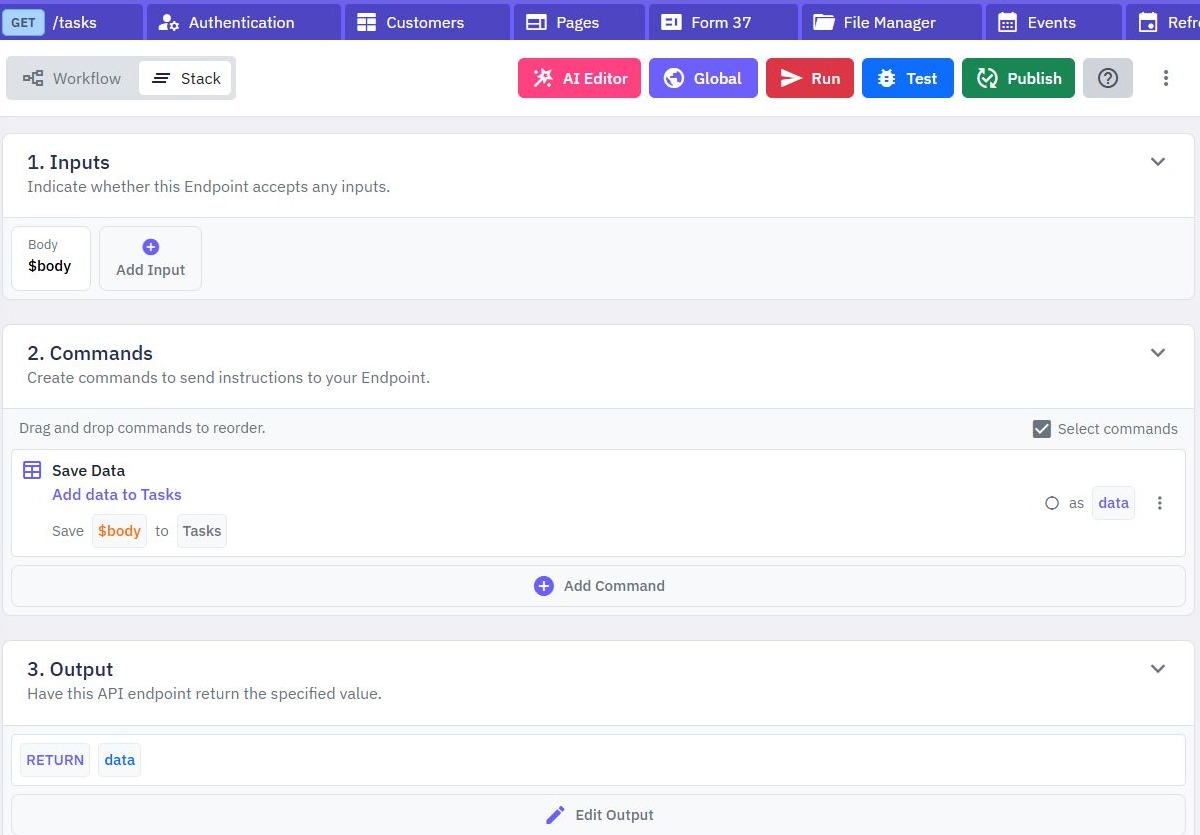
Open the create endpoint and inspect the mapping from body inputs to table fields. Mark genuinely required inputs and decide how to reject empty titles or unsupported status values. A required field checks presence; your workflow may need additional checks for valid content.
On the read endpoints, inspect the database command and the output. In Get Data or Get Multiple Data, use Output → Fields to return to select the data your client needs. An empty selection returns the ordinary complete result, which may expose more fields than intended.
For edits, restrict the fields that callers can change. Do not accept arbitrary record properties just because they exist in the table. On list endpoints, set appropriate filters and result bounds for the intended interface. An all-records list is easy to start with but unsuitable for many larger or private datasets.
4. Add access rules before sharing the API
Choose which generated endpoints require authentication. A public read-only catalogue and a private task manager need different policies. For the latter, follow the signup and login guide and protect the task endpoints with bearer authentication.
Then add record-level restrictions. A valid token must not allow customer A to edit customer B's task simply by changing an identifier. Include the authenticated customer's identity in database filters for reads, edits and deletes. Set ownership from that same context when creating records.
For administrative actions, make the role or permission check explicit in the server workflow. Hiding an edit button in the frontend does not stop someone calling the endpoint directly. Check delete permissions as carefully as create permissions, since generated convenience does not establish your application's policy.
5. Test one complete record lifecycle
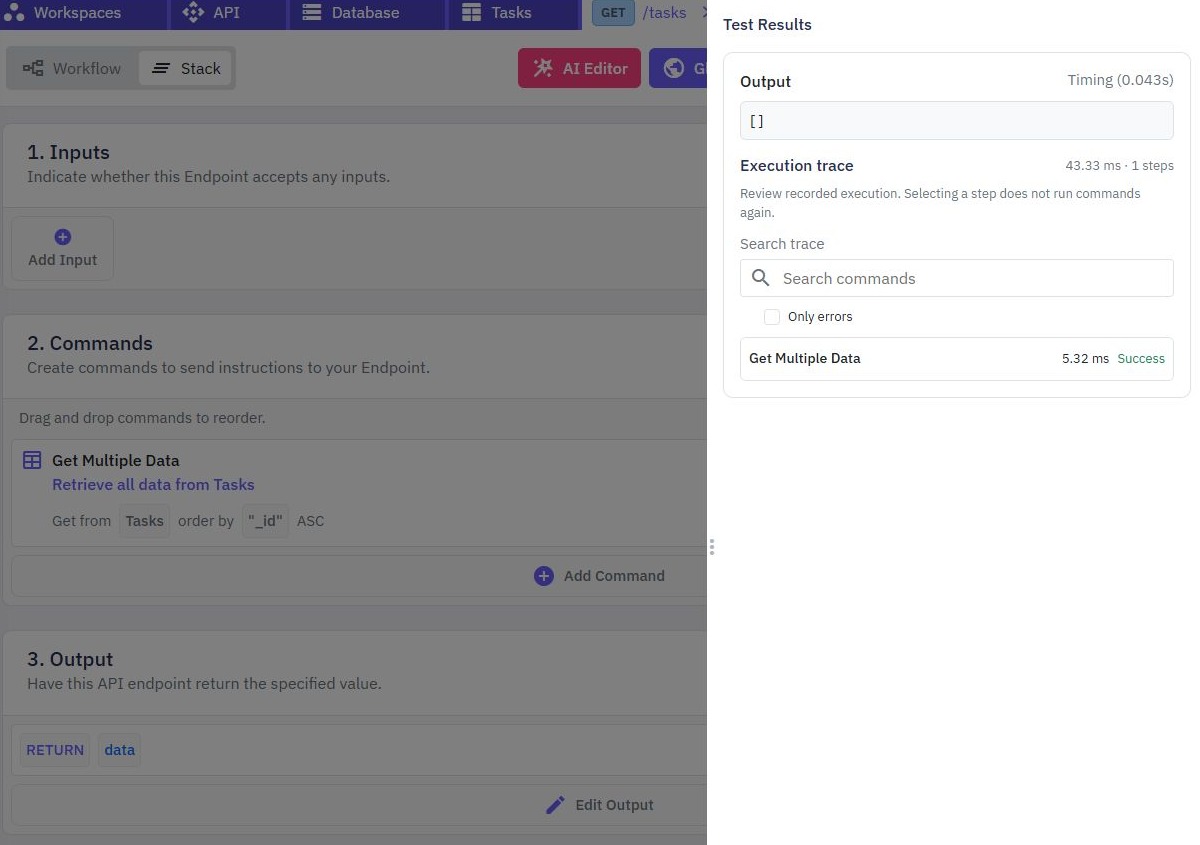
Start with Run & Test in its default isolated-data mode to check inputs and outputs. For a lifecycle that reads and changes the actual workspace table, deliberately select Use live data and use a disposable task. Changes then affect live data. Inspect the generated inputs: in this example the body fields i_title and i_status map to the table fields title and status. An illustrative body is:
{ "i_title": "Check the launch checklist", "i_status": "To Do" }Save its returned identifier. The generated single-record route uses /tasks/{tasks_id}; supply that identifier as tasks_id. Retrieve the list, retrieve that single record, edit its status to Complete, and read it again to confirm the stored value changed. Finally delete only that sample record and check the subsequent read behavior.
Repeat with a missing required input, an unknown identifier and a request without authentication. For a personal dataset, use two sample customers to test cross-account access. Check both the HTTP outcome and the database; a friendly success message is insufficient if the wrong row changed.
If a command fails, trace a new test run to find the exact failing step. Keep real tokens, account records and private data out of shared trace captures.
6. Publish the reviewed contract
Publish each reviewed workflow in the intended workspace. Then use the API client to send requests through the endpoint paths and inspect status codes, bodies and headers. Check the live record lifecycle again using disposable data. Draft tests and published requests are separate checks.
If an edit appears ineffective, compare the request method, identifier input and body field names with the endpoint configuration. If an old response persists, check which version was published. If a table field changes later, review dependent API inputs and outputs rather than assuming every generated workflow updates automatically.
For bulk starting data, use the CSV-to-API guide. For custom business behavior beyond CRUD, add commands using the REST API guide. The API builder overview explains where generation fits alongside custom endpoints.
Go deeper
Supporting documentation
Find the configuration details and reference material behind this page.