

1. Prepare a safe recovery test
Password recovery has two distinct operations: request a recovery email, then exchange the emailed reset key and a new password for a password change. It is separate from signing up or changing a password while already signed in. Begin with the signup and login guide if customer authentication is not configured.
You need an authentication table, a synthetic customer account, access to an explicitly suitable test mailbox and a configured email sender for the workspace. A placeholder email address cannot demonstrate delivery. Configure and approve the sender and recipient before invoking the recovery request; the command sends an actual email for an eligible registered account.
Use a dedicated workspace and disposable credentials. Keep passwords, reset keys, session tokens, inbox contents and credential-bearing URLs out of screenshots and public examples. Capture configuration labels or redacted forms rather than a live key. This page describes the setup and acceptance checks; configuration screenshots alone are not evidence of delivered mail or a completed reset.
Prepare a protected test endpoint that the sample customer can call before recovery. It provides a practical way to check that an old session stops working after a successful reset. Do not use a real customer's account to prove session revocation.
2. Inspect the generated authentication endpoints
Open API, choose endpoint creation and select Authentication. Select the authentication table and a starting path such as /auth. The generator includes /auth/forgot-password and /auth/reset-password alongside signup, login, current-customer and logout operations.
Review the generated workflows before publishing. The request workflow should use Request Customer Password Reset with the intended authentication table and the submitted email. The reset workflow should use Reset Customer Password with that same table, email, reset key and new password.
Current generated workflows use these dedicated commands rather than manually finding a record, storing a raw reset key and replacing a password. An older saved endpoint definition does not become a current workflow merely because its path looks the same. Inspect existing commands and deliberately update or regenerate the recovery definition in a safe test workspace.
Confirm the HTTP methods and full URLs shown in your endpoint list; use a body-bearing POST for the recovery forms. Keep the table selection fixed in the workflow. The caller must not choose which authentication table receives the operation. The authentication-endpoint documentation lists the generated operations and recovery commands.
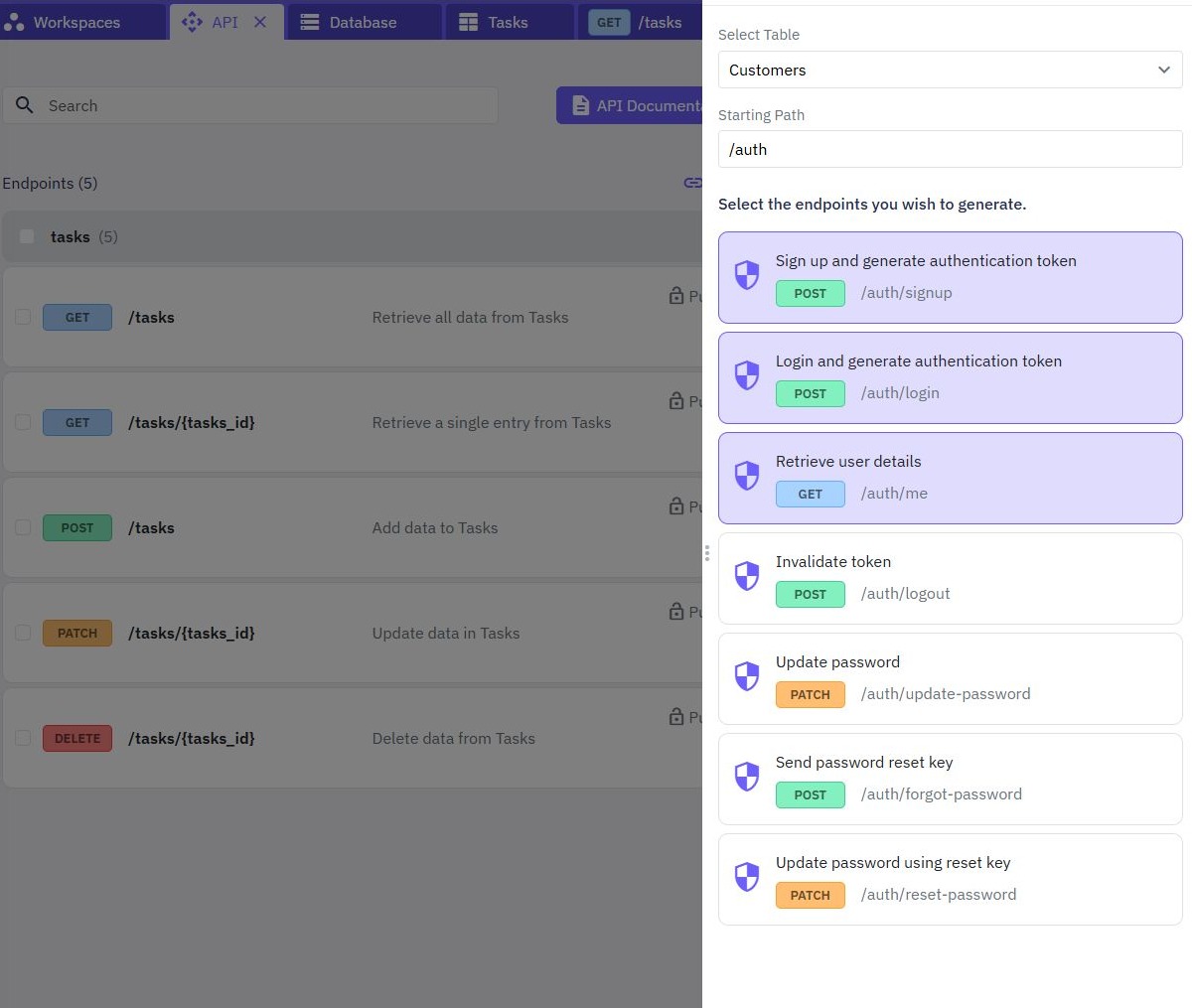
3. Request recovery with generic feedback
The forgot-password form needs one email input. Map its JSON body field to $body.email and pass that value to Request Customer Password Reset. This operation must work for a signed-out customer; requiring the session they have lost would defeat recovery.
After an accepted request, show the same general message for registered and unregistered addresses: “If this email is registered, check your inbox for recovery instructions.” Do not return a customer record, reset key or a message confirming that an account exists. The dedicated command returns generic success for an eligible request that does not match a unique account.
A generic response does not guarantee identical timing or prove mail delivery. A sender failure can still produce a dependency error. Handle that as a temporary failure with a safe retry message, and investigate sender configuration privately without exposing internal details in the form.
The current recovery helper sends the key through the workspace's email integration. Do not add a second independent key-generation step or return the key to the browser for debugging. Protect these public endpoints against abusive repeated requests using a deliberate request policy and API limits; confirm how workspace limits affect legitimate customers as well.
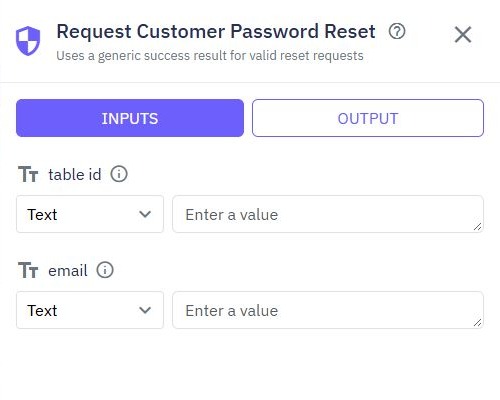
4. Submit the email, reset key and new password
Create a separate reset form with email, reset key, new password and password confirmation. Mask password fields. Compare the two password entries for a useful client-side message, while keeping the password policy and key validation in the backend.
Map the submitted fields to the reset command: email from $body.email, reset_key from $body.reset_key and new_password from $body.new_password. These are field names, not sample secret values. Use the actual key from the controlled email only in the private test form.
Keep the generated result validation after Reset Customer Password. Only show completion when the command succeeded; a false result must not be turned into a successful page message. An invalid or expired key should give a general recovery failure and a way to request a fresh email.
The current recovery implementation uses expiring, single-use keys and invalidates previous sessions after a successful password reset. Those guarantees depend on using the current helper and matching runtime. Verify the behavior through your published endpoints instead of treating the editor's command name as acceptance evidence.
After success, clear the form and any locally stored old session, then send the customer to sign in with the new password. Do not put passwords or reset keys in analytics events, console messages or the success response. If you later build a clickable recovery link, review URL history, referrers and third-party scripts separately; a manual key-entry form avoids inventing an unverified link format.
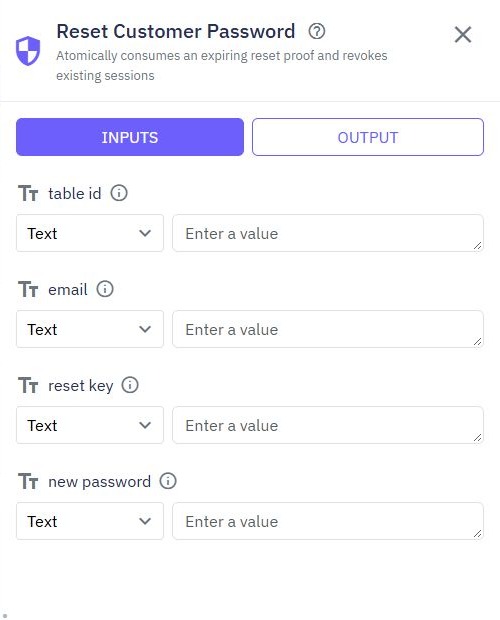
5. Test delivery, invalid keys and old sessions
Use a written acceptance sequence with a disposable account. First sign in and privately keep the old session for one protected-endpoint check. Request recovery, verify that the controlled mailbox actually receives the email, and submit its key with a valid new password. Confirm the reset succeeds and the new password can sign in.
Then try the consumed key again: the second password change must fail. Use a separate request to check a wrong key and a key that has expired. Do not change a live server clock or edit a real account's recovery fields to manufacture expiry. If a test environment supports controlled expiry, document that separately from the browser scenario.
After a successful reset, call the protected test endpoint with the old session and confirm access is rejected. Confirm the old password no longer signs in. A new successful login alone does not prove old sessions were revoked. If an older endpoint uses a different credential workflow, stop and review its command definition and deployed runtime.
Also check the visible message for an unregistered synthetic address, a malformed email, mismatched password confirmation and a mail-sender failure in a safe test setup. Record pass or fail without retaining credentials. These checks are release requirements; this article does not claim that a configuration screenshot completes them.
6. Publish the complete recovery journey
Publish the reviewed recovery endpoints and forms together in the intended workspace. Add a “Forgot password?” link beside login and a return-to-login link from the request and reset pages. Keep the request confirmation understandable even when email delivery is slow.
Use the published URLs to repeat the full acceptance sequence after release, including old-session rejection. A successful isolated builder command does not verify the email provider, browser form mapping, published version and customer session together. Verify the correct workspace and sender before sending another recovery email.
If no email arrives, check the submitted address, authentication table, sender configuration, delivery logs and the mailbox's spam folder. If a key fails, request a fresh email rather than retrying the same failed password mutation indefinitely. Keep account-existence details and recovery values out of support screenshots.
For a customer who is already signed in and knows the current password, use Change Customer Password instead. Take the customer identity from the authenticated session, not a form-selected user ID. Continue with per-user record access to protect application data after login, or the web-app builder to assemble the surrounding interface.
Go deeper
Supporting documentation
Find the configuration details and reference material behind this page.