

1. Isolate a small read-only test
A rate limit controls admission before an endpoint's workflow runs. Use it to bound short bursts or set a calendar-month allowance for your application. It complements endpoint authentication and validation; it does not replace either.
Use a disposable development workspace with a published read-only endpoint, such as a GET returning synthetic tasks. Check your plan's workspace allowance before creating another workspace. Avoid lowering limits in a shared workspace used for tutorials, screenshots or application traffic. Record its original settings before making any temporary change.
This guide describes a controlled acceptance test using two requests per minute and an unlimited workspace monthly allowance. Those numbers are an example, not recommended production settings. Published HTTP calls are needed to observe admission behavior; internal function tests and scheduled events are excluded. The REST API guide covers creating and publishing the endpoint first.
2. Configure the workspace allowance
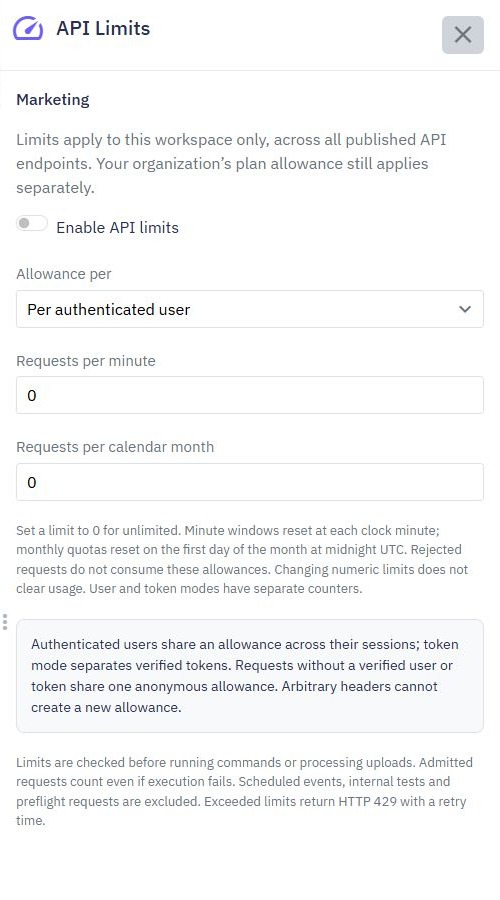
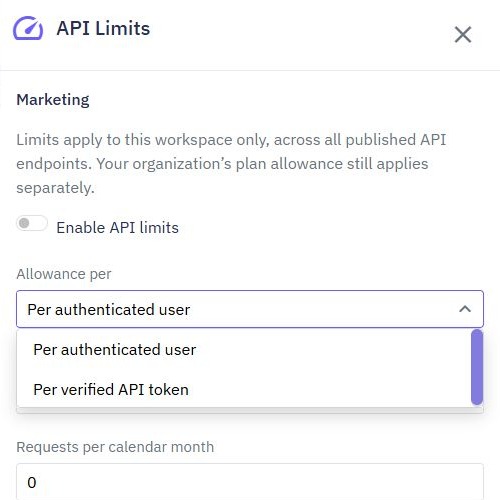
Select the intended workspace, then open Settings → API Limits. Enable API limits. Under Allowance per, choose User or Token, set Requests per minute and Requests per calendar month, then select Save.
For a bounded anonymous test in the disposable workspace, use 2 requests per minute and 0 requests per calendar month. Zero leaves that individual limit unlimited. At least one limit must be greater than zero when limits are enabled. A monthly value of zero does not remove your organization's separate plan allowance.
User shares one allowance across an authenticated person's sessions. Token gives each verified authentication token its own allowance. Calls without a verified user or token share one anonymous allowance; adding an arbitrary header does not create a separate caller. Do not expose a privileged token in client code to try to change this identity.
Changing numbers does not clear existing usage, and user/token modes have separate counters. Confirm the saved policy before testing and allow a fresh clock-minute window if earlier calls have already consumed the allowance.
3. Observe admission and the 429 response
Call the same published read-only endpoint three times with the same caller identity, within one clock minute. Keep the test to those few calls. With an unused two-request allowance, the first two calls should be admitted and the third rejected before its workflow runs. If the minute boundary falls between calls, wait for a fresh minute and repeat the bounded test.
GET your published test endpoint → admitted
GET the same endpoint           → admitted
GET the same endpoint           → 429 Too Many Requests
Inspect the actual HTTP status, response headers and JSON body. A minute-limit denial has type API_RATE_LIMIT_EXCEEDED. A configured monthly allowance denial has type API_QUOTA_EXCEEDED. Twidget includes a Retry-After header in seconds and a numeric retry_after value in the response body. The exact retry value depends on when the request was checked.
This sequence is a test procedure, not evidence that your workspace has already passed it. Preserve the response you actually observe. If no rejection occurs, check the selected workspace, saved policy, caller identity, clock-minute boundary and whether the request was an excluded internal test.
An admitted request counts even if its workflow later fails. A rejected call does not consume the workspace allowance. Browser preflight requests are excluded, so an OPTIONS request should not be counted as one of the three application calls.
4. Show a waiting state in the client
Handle 429 before treating a response as an ordinary successful payload. Read the server's retry guidance and tell the user when another attempt is allowed. Disable repeated submissions while waiting. For a read-only request, a minimal response-handling fragment can return a waiting state to the interface:
const response = await fetch(apiUrl, {
  headers: { Accept: "application/json" }
});

if (response.status === 429) {
  const body = await response.json().catch(() => ({}));
  const header = response.headers.get("Retry-After");
  const seconds = Number(header ?? body.retry_after);
  const retrySeconds = Number.isFinite(seconds) && seconds > 0
    ? Math.ceil(seconds)
    : 60;
  return { state: "limited", retrySeconds };
}
if (!response.ok) throw new Error("Request failed");
return { state: "ready", data: await response.json() };
This fragment illustrates response handling; it is not a complete component or retry scheduler. The 60-second fallback is a client choice for missing guidance, not the server's stated reset time. Twidget exposes Retry-After through CORS, but verify access from your actual permitted frontend origin.
The React connection guide supplies a component with loading, error and cancellation behavior. Extend its UI deliberately. Avoid an immediate retry loop and do not automatically repeat a write whose outcome is uncertain without an idempotency strategy.
5. Distinguish reset windows and service failures
The workspace minute allowance resets at the start of each clock minute. The calendar-month allowance resets on the first day of each month at midnight UTC. These are fixed windows, so traffic just before and just after a minute boundary belongs to different minute windows. Do not describe this as a rolling sixty-second limit.
Your organization's subscription allowance is separate. Do not calculate a billing renewal from the workspace calendar-month reset or assume that increasing a workspace number increases the plan allowance. Review current pricing and the organization's actual usage separately.
If Twidget cannot check the policy temporarily, it may return 503 with type API_LIMITS_UNAVAILABLE and retry guidance. Explain a temporary service issue rather than claiming that this means the caller exhausted a quota. Other 503 responses can have other causes; inspect the type and available guidance.
Apply bounded retries with delay for appropriate read requests. A long monthly wait should lead to a clear message and an owner reviewing usage, not a browser timer scheduling repeated calls for weeks. Authentication failures and request-validation errors need their own handling.
6. Verify identities, restore settings and monitor
After the initial anonymous check, test the identity policy your real application uses. With User mode, two sessions for the same verified user should share its allowance. With Token mode, verify the intended token scope. Anonymous requests should continue to share a common allowance even when a caller invents an extra header. Never include real tokens in public captures.
After the next clock minute begins, make one read request to verify that minute admission resumes. Check that rejected requests did not perform a database write or external action. If testing monthly behavior, use a separate disposable setup and do not consume real customer quotas to generate evidence.
Restore the original API-limit settings when the exercise ends, or disable the policy in the disposable workspace. Verify the saved state and make one ordinary read request. A screenshot of a limit panel alone does not prove an HTTP rejection, an identity boundary or restored service.
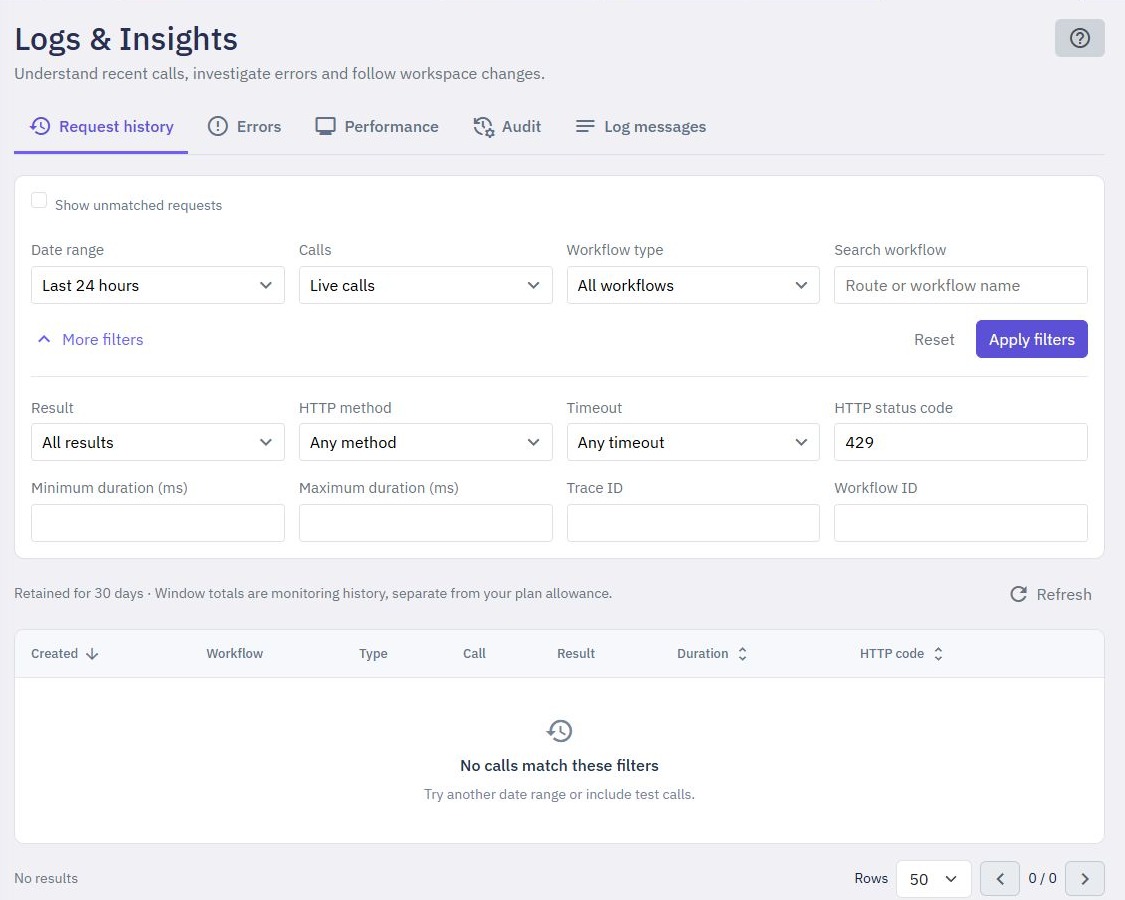
Open Test & monitor → Logs & Insights → Request history. Expand More filters and set HTTP status code to 429 to inspect matching requests. A filter with no matching calls is not proof that a limit was exercised. Administrators may also have Action Stats for broader diagnostics. Keep business validation and safe handling of repeated writes separate from admission controls. The API builder brings these controls together, while each solves a different part of the request lifecycle.
Go deeper
Supporting documentation
Find the configuration details and reference material behind this page.