

1. Define a bounded background job
Scheduled workflows run work without waiting for someone to open a page or call an endpoint. Twidget uses Events for this pattern. A scheduled event executes a sequence of commands at a chosen time or interval, such as refreshing a small set of external catalogue records.
You need access to Events and the database or external service the workflow uses. Prepare sample data and check both Twidget allowances and any provider limits. Start with a small, read-only source request and a clearly identified destination table.
Define what one successful run should change. For this example, fetch a limited product list and save current product names against stable product codes. Do not begin with a job that deletes old records or sends customer emails. First establish that the schedule and command sequence behave as intended.
2. Create an event and add commands
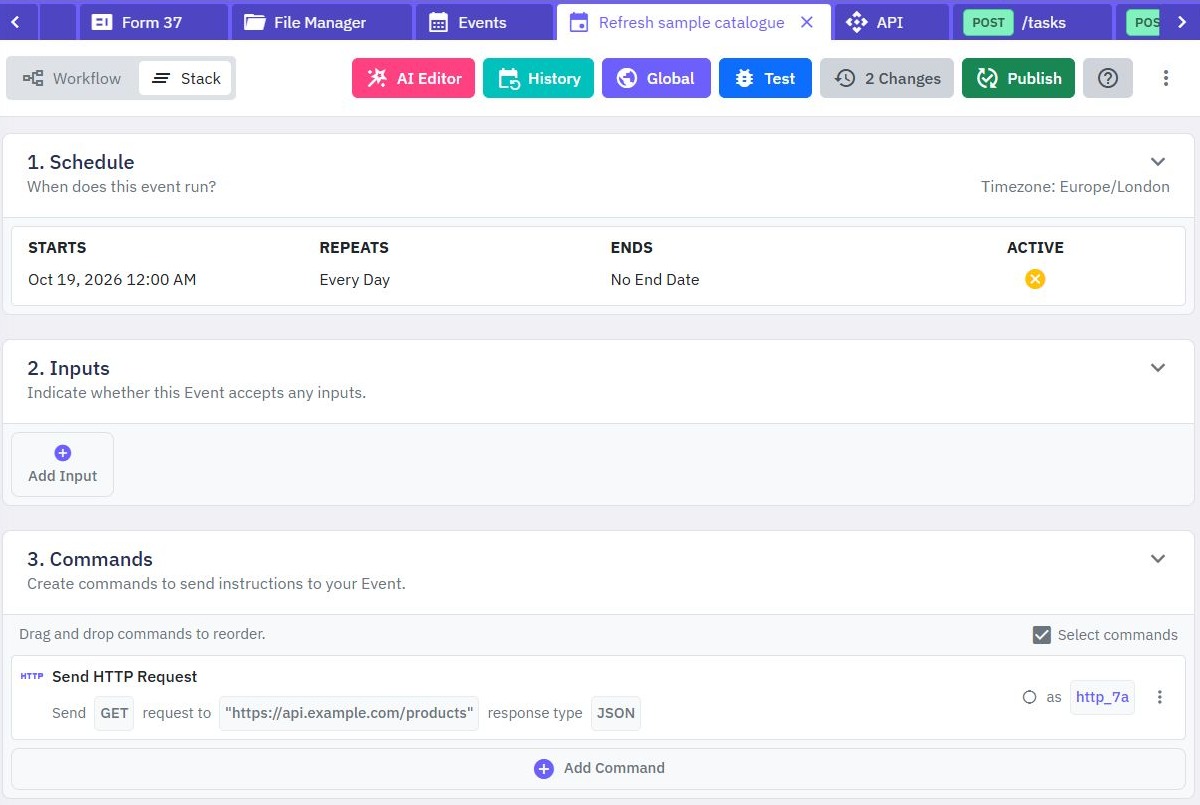
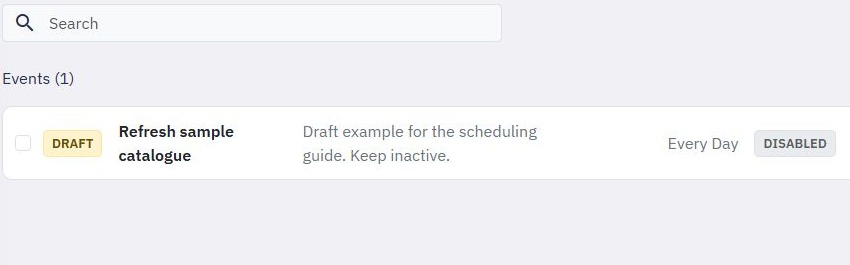
Open Events and select Create Event. Give it a descriptive name such as Refresh sample catalogue. Add a description explaining its source, destination and expected frequency so another workspace member can understand its purpose.
Events use a command builder similar to endpoints and functions. Scheduled events do not receive request inputs or return an HTTP response, so configure their required values within the workflow and its available settings. Do not design the job around a browser supplying a customer token on each run.
Add the external request described in the external API guide, then map the successful response into database commands. Alternatively, start with a database-only task to learn scheduling without a provider dependency. Keep commands in the order their data dependencies require.
3. Make repeated runs safe
A recurring job will see some of the same source records more than once. Use a stable product code to match records, rather than creating a new row on every refresh. Twidget's Add or Update Record command can update a match or add a record when none exists.
Use a unique index for a key that must identify a single record. A prior Has Record check alone does not prevent simultaneous runs from creating duplicates. Check how your workflow behaves when two runs encounter the same item or a previous run only completes part of its work.
Bound the amount of work per run and respect the external provider's limits. If the provider paginates its catalogue, explicitly decide how much data to fetch and when to continue. Do not assume a single response contains every record, or that an incomplete response means missing products should be deleted.
4. Test commands before turning on a schedule
Keep the event inactive while configuring it. Use Run & Test in its default isolated-data mode to inspect commands and outputs. An empty isolated dataset does not mean the live table is empty. To verify actual saved rows, deliberately enable Use live data in the dedicated sample workspace; changes then affect the live table. Run that controlled check again and confirm it updates existing samples instead of adding duplicates. Verify the external provider mode separately.
Enable Trace execution for a fresh test when you need to inspect command order or a failure. A successful individual command is not enough: verify the final stored state. If a run stops halfway, decide how the next run will resume or safely repeat the work.
Test an empty provider result and an unsuccessful request. The workflow should not overwrite valid stored data with an error response or silently treat missing data as an instruction to remove records. Keep credentials and real customer details out of trace captures.
Publish the reviewed event workflow. Publication updates its command definition; review the schedule and active status separately.
5. Configure and verify the schedule
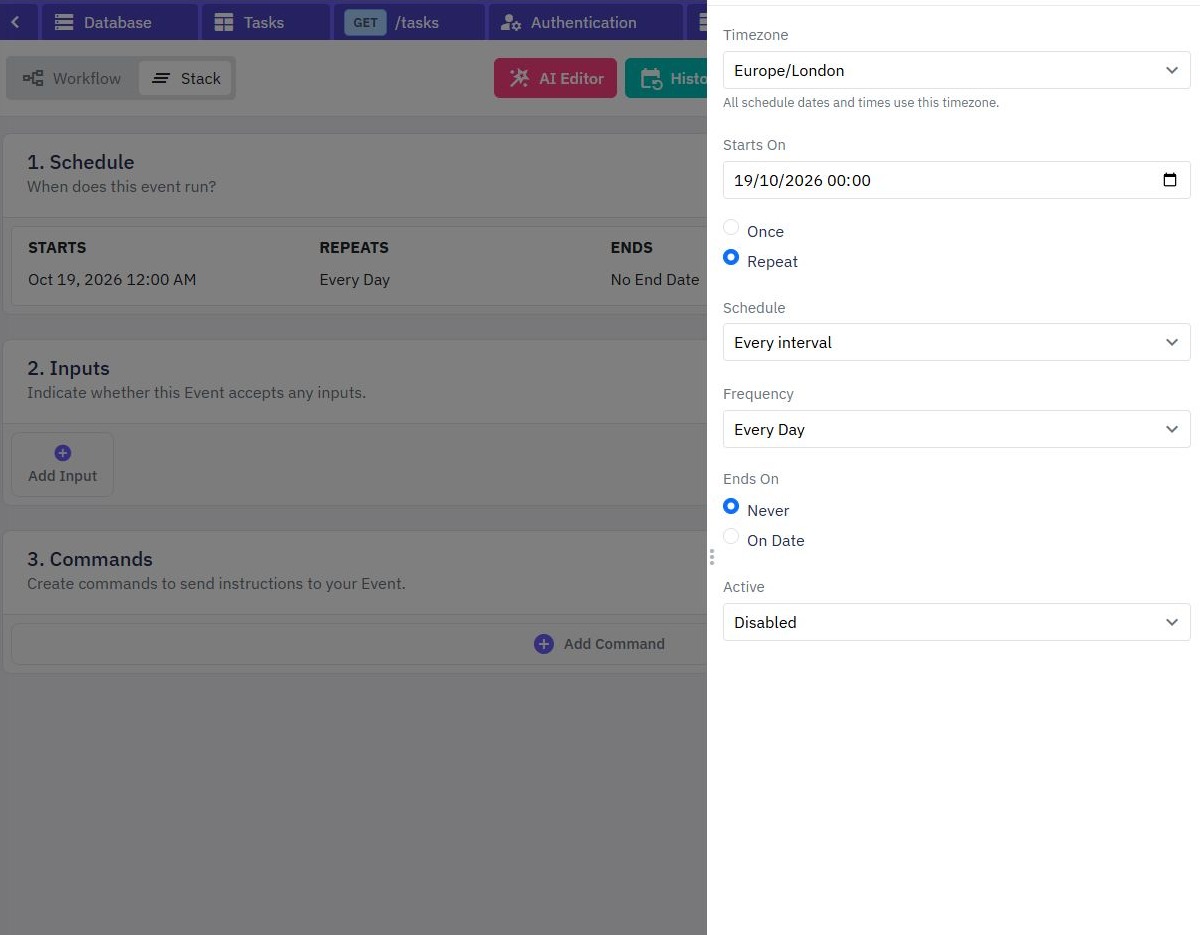
On the Events page, select the event's schedule to open Edit Schedule. Choose the Starting Date, then Once or On repeat. For repetition, choose the interval and configure whether it ends or continues indefinitely.
Start with one observed run or a short, controlled test period rather than immediately enabling an indefinite production job. Review the displayed date and time carefully. Confirm the actual execution time in your workspace before relying on local-time assumptions, particularly for jobs affected by daylight-saving changes.
Use the active-status control to enable the event only after its commands and timing are reviewed. Observe the first scheduled execution and verify the expected records changed. A successful manual test does not establish that the schedule is active or that it targets the time you intended.
6. Check ongoing behavior and changes
Compare the first scheduled run with the expected source count and stored values. If nothing changes, check the active status, starting date, repetition settings and published workflow. If duplicates appear, inspect matching filters and the destination's unique key before allowing more runs.
Disable the schedule while investigating a workflow that produces unintended writes or repeated failures. After a fix, test the command sequence and publish the updated workflow before re-enabling it. Changing a workflow does not reverse remote requests or database writes already performed.
If you use Dev-to-Prod Releases, note that event schedules stay in the destination workspace and new events remain inactive until reviewed. Credentials and table preparation also need separate attention. Review the documented release limits before promoting an integration.
For user-facing data, pair the refreshed table with a reviewed read API. This gives your application a clear boundary between background updates and client requests within the backend.
Go deeper
Supporting documentation
Find the configuration details and reference material behind this page.