

1. Start with a read-only provider operation
An external API lets your Twidget workflow retrieve information or perform an action in another service. Start with a documented read-only request before sending messages, creating orders or changing a remote account. The Test sidebar defaults to isolated data, with an optional Use live data switch. Review that mode before running a test, and do not assume it provides a sandbox for every external provider action. Use a provider sandbox and read-only operation for the first check.
You need a Twidget workflow, the provider's current request documentation and access credentials if the provider requires them. Check its permissions, account limits and usage costs. Use its sandbox or sample account when available.
This guide uses a catalogue lookup as the example: request a list of products, inspect the response and return selected fields to your own client. The provider URL and response fields depend on the service you choose. The example structure is a design pattern, not a claim that every provider uses the same contract.
2. Add an external HTTP request command
Open the endpoint or server workflow where the integration belongs and add Send External HTTP Request. Configure the provider's URL, HTTP method, query parameters, headers and body as required. For a simple catalogue read, that usually means GET plus the filters documented by the provider.
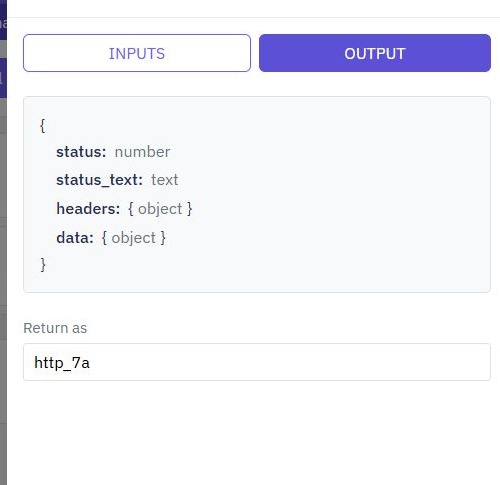
Set the request timeout deliberately; Twidget's documented timeout parameter is in seconds. Choose a useful return name so later commands can reference this request's result. Review the selected account or credential configuration before testing.
Keep service credentials in the configured server-side credential mechanism. Do not put a private API key in a public page variable or return it in your endpoint output. The frontend should call your own appropriately protected endpoint, which then performs the provider request using its configured access.
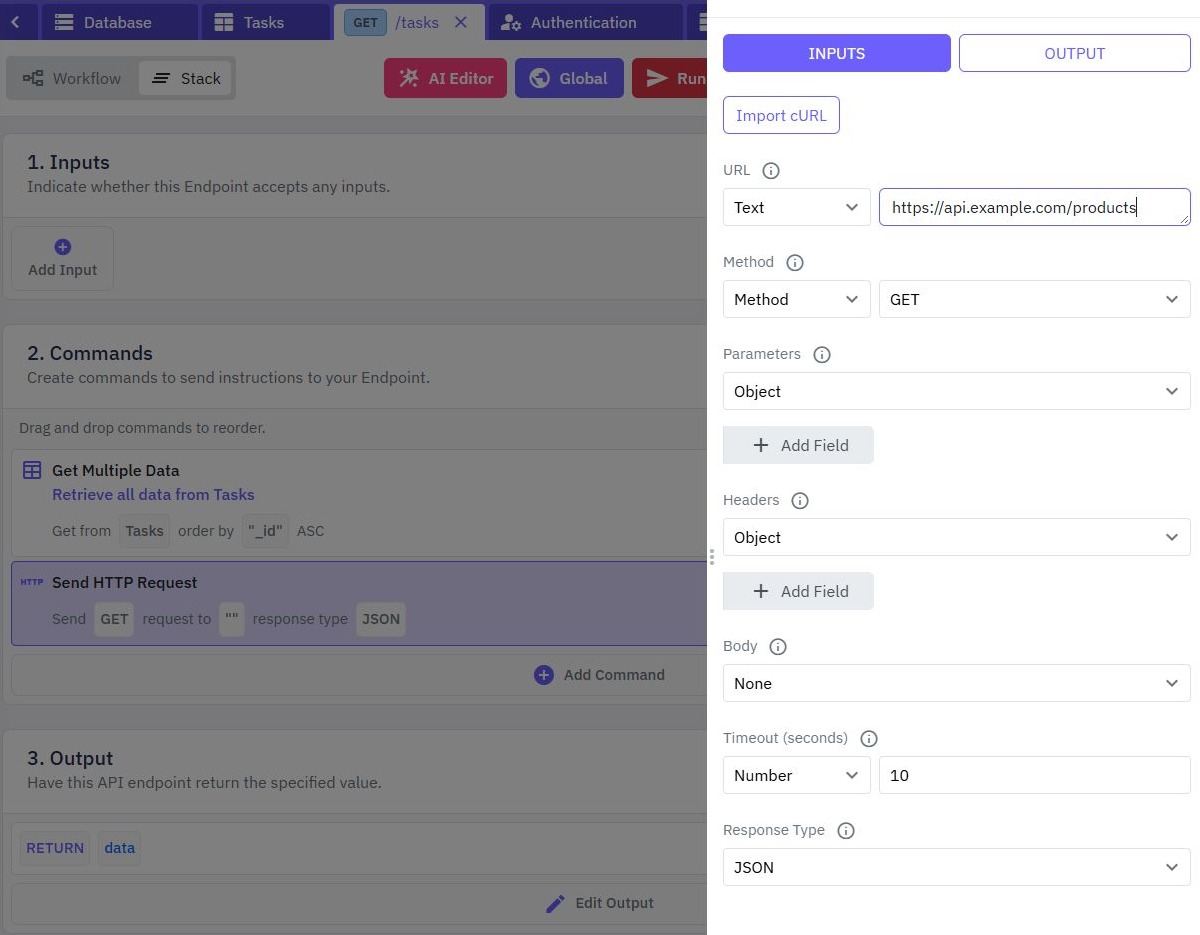
3. Import a cURL example when useful
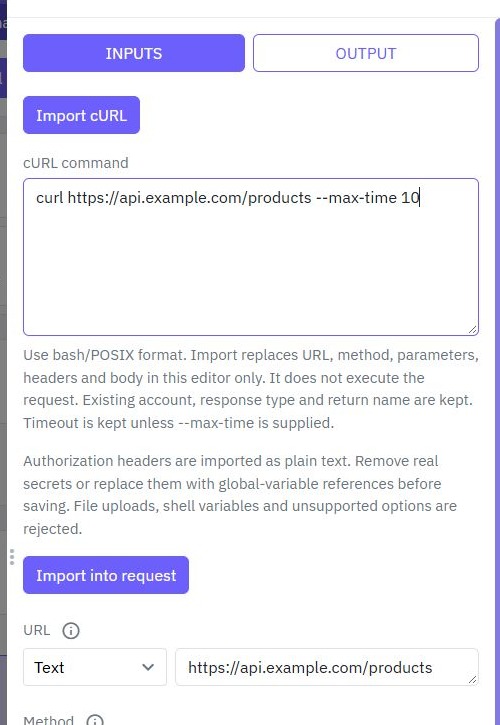
If the provider supplies a conventional cURL example, open the request editor and select Import cURL. Paste the example into cURL command and choose Import into request. Remove real tokens from examples before sharing or capturing screenshots.
The import fills request fields without sending the request. It replaces the URL, method, parameters, headers and body while keeping the selected account, response type and return name. The timeout is retained unless the example includes a maximum time.
Review every imported field before saving. Importing an example does not verify its credentials or make its business action safe to run. Use a standard quoted request rather than a script or a file-upload command; unsupported examples produce an error. You can also enter the request manually using the provider documentation.
4. Inspect the response before mapping it
The documented HTTP request result exposes status, status_text, headers and data. The data property contains the provider's response body. Inspect a test response before selecting fields, since the provider may return a nested object, a list or a non-JSON body.
Illustrative result structure, with example provider data:
{
  "status": 200,
  "status_text": "OK",
  "headers": {},
  "data": { "products": [{ "code": "SAMPLE-1", "name": "Sample item" }] }
}
For your endpoint output, select only the product fields the interface needs. Do not forward the complete provider response by default. If you save products to a table, match on a stable provider identifier and use a unique index where it must identify one record. The CRUD guide covers the API for your stored records.
5. Handle failures and constrain inputs
Check the provider status before treating data as a successful result. Decide how your workflow should respond to a missing record, rejected credentials, rate limiting, timeout or unexpected body. Give the client a useful failure message without exposing provider tokens or internal request details.
Accept only the inputs the integration needs. For example, accept a product code and map it into a fixed provider request. Do not let an unauthenticated caller choose an arbitrary URL while your workflow attaches a private service credential.
Use Run & Test with a valid lookup, an unknown product and missing inputs. For repeated writes, design duplicate handling before adding retries. A timeout does not prove the remote action failed; repeating a payment or message request blindly can duplicate its effect. Follow the provider's documented idempotency behavior where available.
6. Publish and check the complete integration
Publish the reviewed workflow, then call your Twidget endpoint through the API client. Verify the client-facing status and response, the provider's observable result and any saved database record. For private data, check the endpoint's authentication and ownership rules using the account guide.
If a builder test works but the external request fails, check the published version, selected workspace, live credentials and exact input names. If a provider rejects the request, compare the method, headers, body and account permissions with its current documentation. Trace a fresh test when you need to locate the failing command.
Once the read-only integration is reliable, you can reuse it in a scheduled workflow to refresh stored data. Check request frequency against the provider's limits before enabling it. The backend overview shows how external requests sit alongside database operations and customer authentication.
Go deeper
Supporting documentation
Find the configuration details and reference material behind this page.