
1. Prepare the upload endpoint and a harmless test file
This guide connects a Twidget page to an existing single-file endpoint. For backend setup, first follow create a file-upload API. You need a dedicated development workspace, a published test endpoint and a small synthetic text file such as sample-note.txt. Avoid personal documents while testing.
Inspect the endpoint input and output rather than guessing their names. Write down the multipart file field, required metadata and the response property containing the stored-file reference. Decide whether the file is public or private. A protected upload endpoint does not automatically make a public file private.
2. Add a named file input inside the form
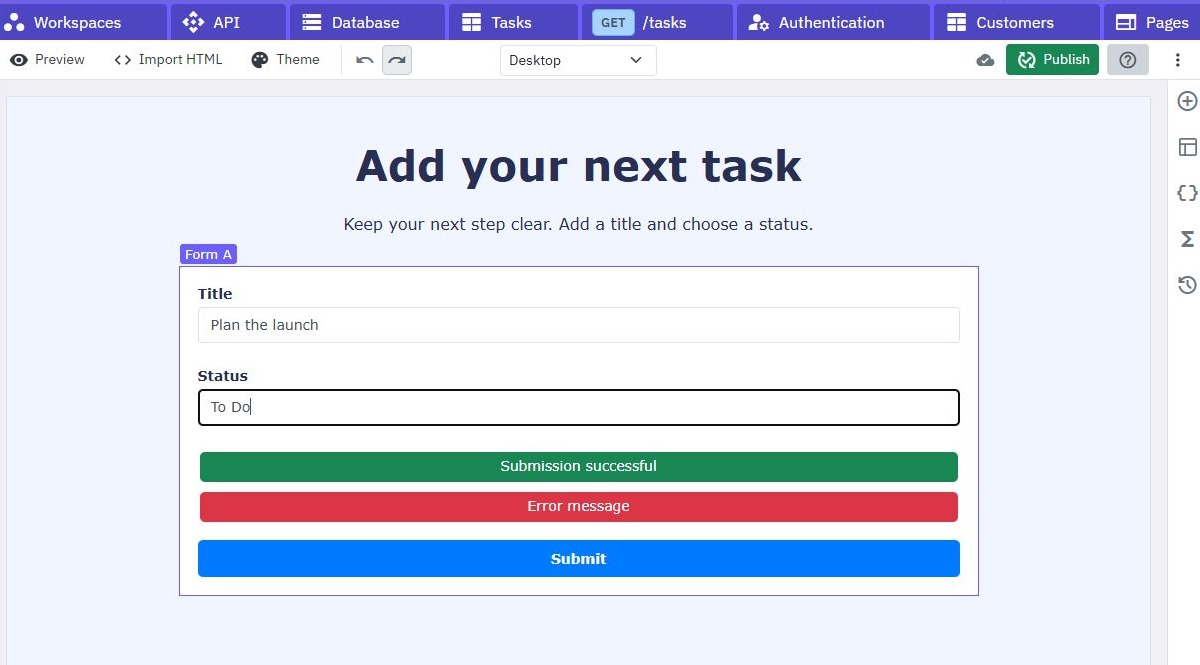
Open Pages and create or edit a test page. Add a form, a file input and an associated submit action. Put the file input inside the form and give it the same name as the endpoint expects. Only inputs nested in the form contribute to the form payload. Start with one file; multiple-file handling has a different contract.
Add a short instruction describing the intended file type and your application limit. Client hints help selection, but enforce required file, size, type and access rules on the backend as well. Do not trust a filename extension as proof of file contents.
3. Connect the submit function using multipart data
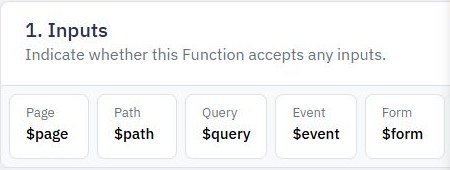
Create a page function and connect it to form submission. Configure its HTTP request to use the endpoint's method and URL, mapping the selected file into form data under the agreed field name. Send the bytes, rather than a filename string or an ordinary JSON object. Include authentication when the endpoint requires it.
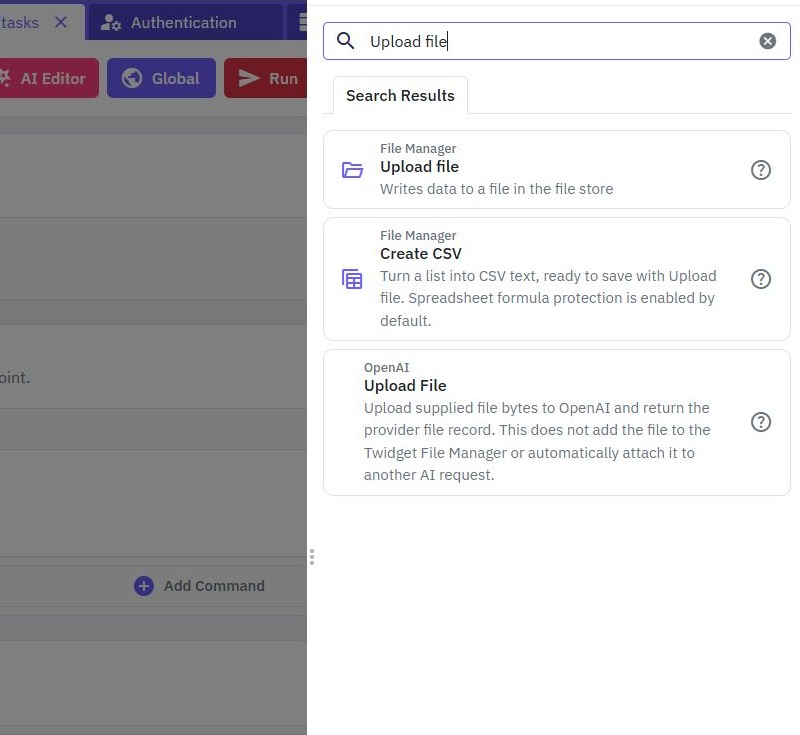
Let the browser/request command construct the multipart boundary. A manually supplied Content-Type: multipart/form-data header without its matching boundary can make an otherwise valid upload unreadable. Map each additional field individually; storage permissions and destination must follow server policy, not arbitrary browser input. Watch upload files using Pages for the page-side workflow.
4. Separate pending, failure and verified success
Use page variables to represent pending state, a safe error message and the saved-file result. Clear the old result when a new submission starts, and prevent a second submit while the first is pending. Only display success after a successful response with the expected reference. A local filename preview only confirms selection.
If the request fails, restore the submit action and explain whether the user should choose another file or retry. Keep private tokens, internal storage paths and raw exception traces out of the message. For private files, use the application's authorized retrieval workflow instead of rendering an assumed public URL.
5. Check the stored result and rejected requests
| Test | Expected result |
|---|---|
| Small allowed test file | One successful response and a matching item in File Manager |
| No file selected | Useful validation message; no new file |
| Disallowed or oversized file | Backend rejection; no success message |
| Expired session | Denied request; user can recover without losing context |
| Double submit | Second action prevented while pending |
Read back or download only your own synthetic fixture through the intended access path and compare its contents. Test after publishing too: a working draft function is separate from the public page and endpoint. No new upload execution is claimed by the configuration screenshots in this article.
6. Diagnose common integration failures
If the backend sees no file, compare the form input name, multipart key and endpoint file input. If only the browser fails, inspect the response and configured frontend origin; follow the browser-access checks in connect a frontend. A successful upload with an unusable link usually calls for reviewing the returned reference, storage permissions and retrieval contract.
Continue with multiple-file uploads when your single-file journey is reliable. Twidget's web app builder brings the form and backend together; review current plan allowances for your project.
Go deeper
Supporting documentation
Find the configuration details and reference material behind this page.