

1. Decide how the uploaded file will be used
A file-upload endpoint receives file data and saves it to storage. It can support task attachments, profile images or submitted documents. Before building it, decide whether the resulting file should be public, private to one customer or accessible to a team.
This example uses a small sample text file with no personal information. The configuration below follows the maintained documentation and command definitions; it is not a report of a completed live upload. You need a workspace with API and file-store access and enough available storage. Check your current plan's file and request allowances; use current pricing rather than assuming every upload option is included.
Choose an identifiable test destination so you can find and remove the sample later. If you use a folder, its folder path ends with a slash; the complete destination for the file includes its filename. Keep a record of which stored file belongs to which sample task or customer. A folder name alone does not enforce ownership or grant permission.
2. Create a custom endpoint with a file input
Open API, start endpoint creation and select the custom-endpoint option. Give it a clear name, choose POST and set a path such as /attachments/upload. This is a path you configure, not a fixed Twidget upload URL.
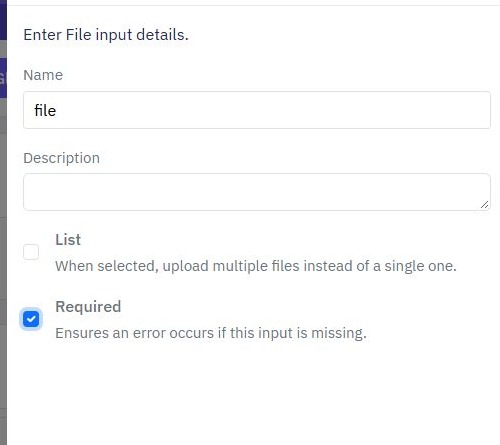
In the endpoint's inputs, add a File input named file, use the File data type and mark it required. The uploaded value is available to commands as $files.file. For this first check, keep the storage destination and permissions fixed in the workflow instead of accepting an arbitrary path or access level from the caller.
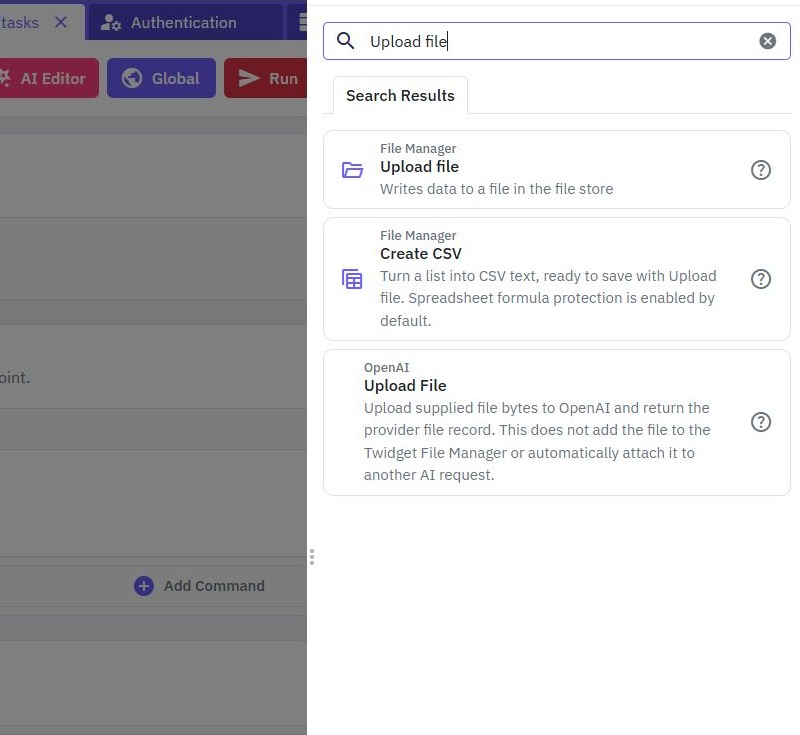
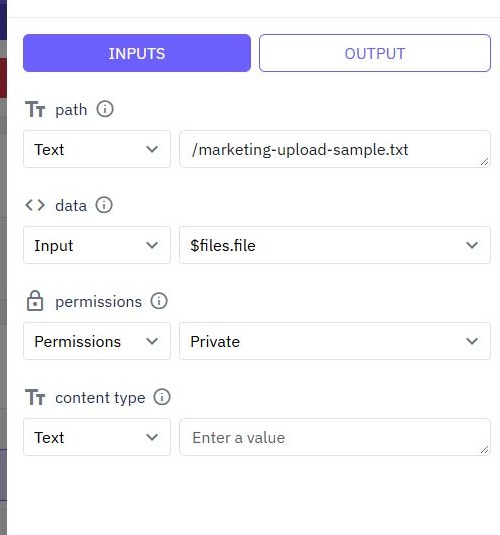
Add the documented Upload file command. Set path to a disposable destination such as /marketing-upload-sample.txt, map data to $files.file and choose private permissions. Use a destination that does not already contain a file you need. A file destination must include its filename and must not end with a slash.
Name the command result uploaded_file. Configure the output to return only useful metadata from this result, such as filename, path and file size. The command also supports a content-type input; for a plain-text sample, text/plain is appropriate. Do not return the complete file bytes unnecessarily.
3. Match the multipart request to the input
File inputs use multipart form data. They are available to workflow commands through the $files. prefix. The custom endpoint above names its input file, so its reference is $files.file. If you choose another input name, update the command mapping and request field together.
In your request client, add a multipart file field whose key is file, then select your small sample text file. Use the request client's multipart handling to build the boundary. Sending a file path string in a JSON body does not upload the bytes of that file.
This initial endpoint keeps its destination and permissions fixed, so its request needs only the file input. If you later add destination or other inputs, validate them and provide the values in the form the workflow expects. For a page interface, use the documented file-upload page workflow and map the selected file to the endpoint rather than placing file data in an ordinary text field.
4. Review storage, validation and the response
Review the storage command's fixed destination and private permission setting. For private attachments, protect upload requests and verify the read path too. A protected upload endpoint does not automatically make every later file URL private.
Choose an explicit file policy for your application: permitted file types, maximum sizes, naming behavior and who may retrieve or delete an attachment. Implement checks using the controls and commands available in your workspace, then test them. Do not treat a filename extension as proof of a file's actual contents or assume uploads are scanned automatically.
Return only the metadata the client needs, such as the stored file reference required by a later task record. Inspect the command result before deciding your client-facing response property names. Avoid returning private folder listings or unrelated file information.
If you connect files to the task app, save the returned reference with the relevant task after upload succeeds. Decide how to clean up an uploaded file if saving the task later fails.
5. Test the file lifecycle
The Test sidebar defaults to isolated data. Do not use a successful isolated test as proof that a file exists in the live File Manager. For a live upload check, deliberately enable Use live data or call the published endpoint, using a tiny disposable sample file. Inspect the response. Open the File Manager and confirm the file exists in the intended destination. Retrieve it using the access route your application will use and verify the contents match.
Repeat with a missing file input, the wrong multipart field name and a file your application policy should reject. For private files, test a signed-out request and a second sample customer. Test replacement and deletion behavior deliberately; do not assume repeated names overwrite or version existing files.
Check storage usage after the exercise. Remove only the files you created for this test and verify that any referencing sample records no longer point to missing attachments. If you add a delete endpoint, verify both its permission checks and its behavior when the file is already absent.
6. Publish and troubleshoot the integration
Publish the reviewed workflow, then repeat an upload through the endpoint's actual URL. Builder tests help inspect commands; the external multipart request also checks the method, field name, authentication and published version together.
If the workflow reports a missing file, compare the multipart key with the endpoint input. If a file appears in the wrong place, inspect the destination mapping and folder slash. If retrieval is denied or unexpectedly public, review file permissions separately from endpoint authentication.
The documentation also describes Create Endpoint → Manage Files as an optional generator. Use it only if the desired templates are visible in your workspace, and review their inputs and commands. If its Select endpoints area is empty, a starting path alone does not create a working upload endpoint: return to the custom workflow above rather than assuming generation succeeded. Start with one file and check plan availability before considering multi-file options. For related records and account rules, continue with the CRUD guide and customer authentication guide. File storage is one part of the wider backend workflow.
Go deeper
Supporting documentation
Find the configuration details and reference material behind this page.