
1. Choose a small reusable interface
Start with a status summary card used on a task list and a detail page. It contains a heading, a short explanation and a status value. This is a component recipe, not a downloadable starter. Use synthetic content in a development workspace and make a list of the pages that will consume it.
Share a component when its structure and behavior should stay consistent. A one-off section that only looks similar may be better left independent. Backend custom functions share server logic; page components share interface structure and their configured page behavior.
2. Create the component and its structure
Open the page-component area and start a component. Choose an appropriate type and a descriptive name, such as Task status summary. Build the text and layout elements in the editor. Keep the first version small enough that two consuming pages can exercise all of its states.
Check the controls available in your current interface rather than assuming every element can become a component automatically. The maintained page components documentation describes creation, variables and placement. The component tutorial gives the visual workflow.
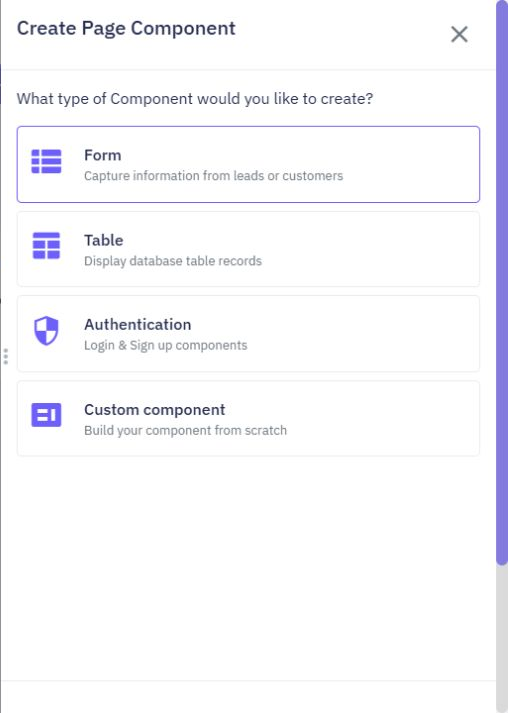
3. Expose a clear variable contract
Define the values the parent supplies, such as title and status. Use sensible defaults for optional presentation values, but keep missing required data distinguishable from a real empty result. Map the parent page's permitted record fields into the component variables explicitly.
Do not place tokens or server secrets in a component variable. These values participate in the page experience. Review binding context when nesting components: the parent's variables and the component's declared values must not be assumed interchangeable. Test each input independently before combining them.
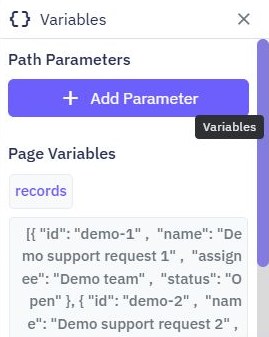
4. Place and configure two consumers
Add the component to the task list and detail page, then configure different synthetic variable values for each instance. Preview both. A useful test is one open task and one complete task: changes in one parent's data should not silently mutate the other instance.
If the component has actions, make their target and required inputs clear. Avoid baking one specific record ID or destination into a shared action. Keep record authorization in the backend even when the shared component consistently hides controls. See conditional sections for presentation states.
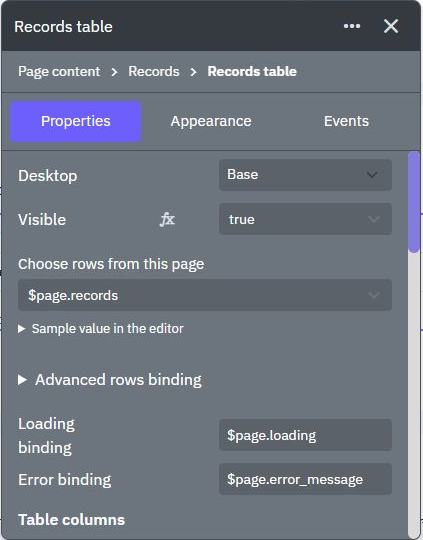
5. Treat a shared edit as a multi-page change
Update a label or layout in the component, review it and publish according to the component workflow. The documentation describes publishing as the step that makes a shared change available across its uses. Check the actual result on both published consumers; a draft preview alone does not establish propagation.
Review the consuming pages before removing or renaming variables. They may still supply the old contract. Keep a recoverable known-good version of the source and record the affected pages. Do not assume an app workflow release automatically moves page components; verify the deployment mechanism used for the pages themselves.
6. Check instances and accessibility
Test missing values, long labels, keyboard actions, two instances on one page and a narrow viewport. Ensure shared markup does not introduce duplicate element IDs, broken label associations or inconsistent heading levels. Test any page action from each consumer using its own record.
After publishing, reload both pages and confirm the intended shared change and their distinct data. Continue with a dynamic detail view or the task app. The screenshots illustrate the relevant editor controls; they do not establish that this two-page fixture has been published.
Go deeper
Supporting documentation
Find the configuration details and reference material behind this page.