
1. Describe one useful app journey
Start with a small request tracker: staff create a request, list requests and update a status. Specify the fields, allowed statuses, intended users and actions. A short concrete brief is easier to review than a request for an entire business system.
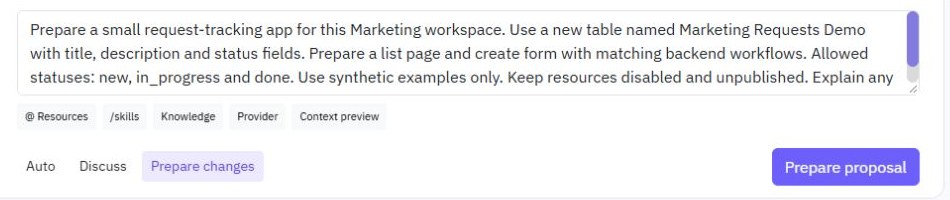
Prepare a small request-tracking app for this Marketing workspace.
Use synthetic examples only. A request has title, description and status.
Prepare a list page and a create form with matching backend workflows.
Allow statuses new, in_progress and done. Keep resources disabled
and unpublished. Explain any access rules that still need setup.
Do not paste customer records or credentials into the prompt. Name an existing resource explicitly when you want to reuse it; otherwise state that this is a new example. The web-app builder explains how pages and backend workflows fit together.
2. Open Assistant and prepare changes
Check the workspace name and environment, then open Assistant. Use Discuss for planning without resource proposals, or Prepare changes when the brief is ready for a proposal. Auto can also prepare a proposal when a build request is sufficiently clear. Choosing a mode alone does not send the message.
Use @ Resources when the task depends on an existing page, table or endpoint. Check the selected resource types and paths before sending. If a provider connection is needed, configure it through its normal settings; do not ask the Assistant to invent credentials. Check available AI allowances before starting a large request. A submitted prompt is not a completed application.
If the Assistant reports insufficient AI balance, generation cannot continue until the organization has an available allowance. Do not treat a failed request as a saved proposal. You can continue planning or build the same resources in the visual editors. Check the saved task outcome before retrying an interrupted request.
3. Inspect the proposal before saving
Open Resources & review and inspect what the Assistant proposes. Check table fields, endpoint inputs, page-to-endpoint mappings and the intended output. Look for unrelated changes or duplicate resources before accepting the proposal. Review validation messages in their context instead of assuming a green-looking page means every workflow is ready.
Pay particular attention to permissions. A public list is unsuitable for private customer requests. Restrict writes to allowed fields and obtain identity in the backend. Use the permission guide and validation guide to review those decisions. If a resource is wrong, ask for a targeted revision and review the resulting changes again.
Prefer to follow the controls on screen? Watch the existing tutorial: review and save Assistant changes.
4. Save drafts and inspect the ordinary editors
Choose Save as draft only after reviewing the proposal. Saving a draft is separate from publishing or enabling a resource. Open the normal page and workflow editors to inspect the actual saved result. An editor that was already open may retain its own unsaved view; resolve that work before reopening it to check the latest saved draft.
Check field names against the table, review every write mapping and confirm the frontend reads the endpoint's actual response shape. Replace any explanatory placeholder with a valid configuration or leave the resource disabled. Do not publish a credential placeholder simply because the Assistant included it in a proposal.
5. Test successful and rejected actions
Create a synthetic request, retrieve it, update its status and confirm the returned record. Then submit a missing title, unsupported status and unauthorized request. Test the same journey through the page as well as the endpoint editor; an isolated command success does not verify form binding or customer access.
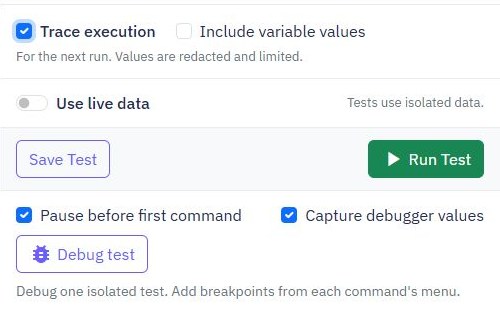
Use ordered API tests for repeatable endpoint checks and execution tracing when a result differs from the brief. Check empty and failed-request page states. Screenshots of proposal and configuration controls illustrate the review process; they do not prove every generated application is correct.
6. Publish only the reviewed app
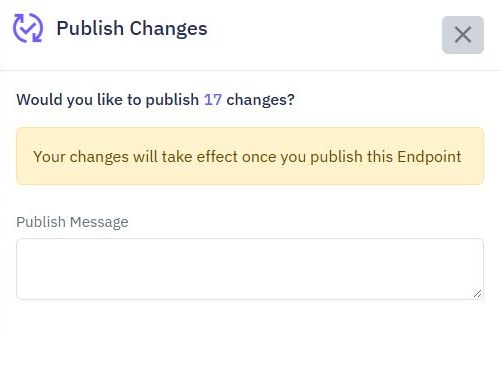
Review the resources as one user journey, publish the intended versions and deliberately enable the required endpoints and pages. Confirm plan allowances before enabling them. Check the published URLs with synthetic data and verify access again outside the editor.
Keep the original brief and a short record of the accepted changes so later edits have a clear purpose. Use the Assistant for a focused next change rather than regenerating the entire app unnecessarily. For a separate production workspace, follow the release guide; page publishing and a backend workflow release are distinct operations.
Go deeper
Supporting documentation
Find the configuration details and reference material behind this page.