
1. Choose the table and permitted data
Use the database-table editor for an operator-controlled CSV export. The no-code backend overview explains the tables and endpoints behind your app. This guide does not add a public download endpoint to your app. Open the intended workspace and table, and check that the data is suitable for your recipient before downloading. A CSV can contain fields that you would deliberately omit from a customer-facing API.
For a repeatable test, create three synthetic records in a dedicated table, with two marked active and one archived. Include a value containing a comma, such as Example, Studio, if you want to check parsing. Avoid personal records, credentials and authentication tables in screenshots. The CSV import guide covers the reverse workflow.
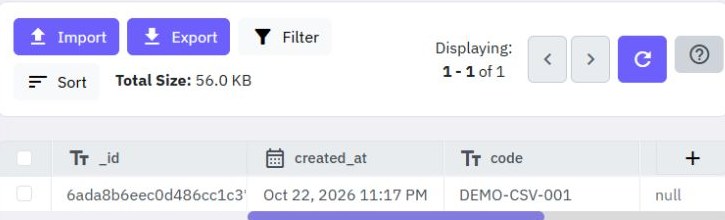
2. Apply and verify the desired filter
In the table toolbar choose Filter and restrict the fixture to active records. Confirm which records are visible and read the displayed result count before exporting. Remove an unintended filter before requesting a broader export.
Filtering the editor is different from applying authorization in a customer app. A workspace operator's table access must not become a customer's export permission. If you need a customer-facing export later, build a separately authorized workflow using server-side ownership rules and an explicit field allowlist.
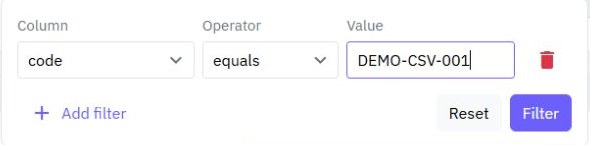
3. Choose the export scope deliberately
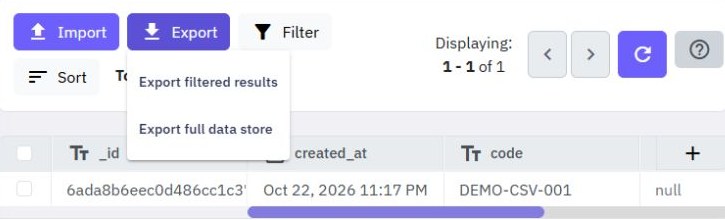
Open Export. The current editor offers Export filtered results when there are matching records, and Export full data store. The filtered action carries the current filter, sort, offset and page limit. Do not assume it includes every page of matching data: verify the downloaded row count against the scope you need.
The full-data-store action removes filters and starts at the beginning; the current editor submits a limit of 10,000 records. Its label is not a guarantee of an unlimited database backup. For a table near or above that size, verify the actual result and arrange a separately validated export method. Increasing a page limit or repeatedly downloading pages is not a stable snapshot of a table that changes during the export.
4. Check the file before using it
The editor generates a download named after the table, ending in export.csv. Open the synthetic fixture with a CSV-aware reader and inspect its header, parsed record count and a few known values. Count parsed records rather than newline characters, because quoted text can contain line breaks.
Object and list fields are serialized as JSON text inside CSV cells; they do not become separate relational sheets. Check identifiers and date/time values before letting a spreadsheet infer types. Open untrusted text columns as text where appropriate, since spreadsheet applications may interpret formula-like values. Keep the original file while checking any transformed copy.
5. Reconcile the expected records
For the three-record fixture, a filtered export should be checked for the two active record identities; a full export should be checked for all three. Also verify the comma-containing field parses as one cell. If the result is truncated, compare the current page limit/offset and export choice before calling it a completed export.
If downloading fails, inspect the editor's error and retry only after checking that the selected workspace and table are still correct. An empty filter may hide the filtered-export choice. A successful download alone does not prove completeness; record the filter, time, table and parsed count for a meaningful handoff. These checks should be executed with your fixture before exporting operational data.
6. Share a deliberate handoff, not a backup claim
Review the columns and remove data the recipient does not need in a checked copy. Store and share the export through an appropriate controlled location. A downloaded CSV is detached from the app's ongoing permissions and updates, so decide who may retain it and for how long.
A single-table CSV does not contain the whole application, its workflows, access rules or a verified relational restore. Keep backup and recovery requirements separate. For a practical use, export a checked CRM contact list or purchase-request handoff. Use the related-data guide when the receiving system needs references across several tables.
Go deeper
Supporting documentation
Find the configuration details and reference material behind this page.