

1. Prepare a small sample before the full import
A CSV file is useful for moving tabular data, but a frontend often needs an API rather than a downloadable spreadsheet. In Twidget, the sequence is to create the destination table, import the CSV and then generate the API operations you want callers to use.
You need a workspace with database and API access, a CSV file and permission to publish the data it contains. Use a small non-sensitive sample first. Check table storage and request allowances before importing a large dataset or exposing it to external clients.
For this example, prepare a product catalogue with three columns: code, name and price. Keep product codes as text if leading zeroes matter. A small illustrative CSV is:
code,name,price
SAMPLE-001,Notebook,4.5
SAMPLE-002,Pencil set,2.75
Remove private or internal-only columns before import. Deleting them from the later API response is useful, but avoiding unnecessary stored personal data is simpler.
2. Create the destination fields
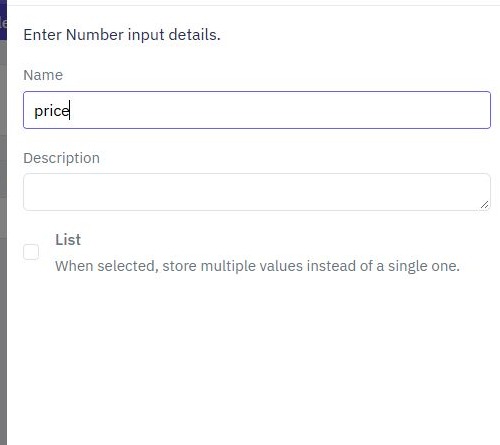
Create a products table. Add text fields for code and name, and choose a suitable numeric field for price. Agree the price unit before importing: the CSV above uses decimal currency units as a sample convention. Your application may need a different representation.
Field types should match the values you intend to store. Check representative dates, blank cells, decimal formats and identifiers instead of assuming a spreadsheet's visual formatting survives export. Twidget's CSV importer does not import List or Object fields.
Create missing destination fields before opening the import. You can generate CRUD endpoints during table creation, but review and restrict them before sharing any URL. For a catalogue, public reads and restricted writes are often more appropriate than giving every caller all operations.
3. Preview and map every column
In the table toolbar, choose Import → Import from CSV. Select Choose File and open the sample CSV. Twidget previews the first ten rows, which helps catch basic formatting and mapping problems before the import.
Matching CSV headings are automatically mapped to existing table fields. Review each mapping manually. Map any nonmatching heading to the intended destination, and resolve entries highlighted in red for unmapped or duplicated headings. Do not proceed while a price column is mapped to a name field or a code is being treated as an ordinary number.
The preview covers only the beginning of the file. Inspect later rows in the source as well, especially where values have different formats. Once the mappings are correct, select Import CSV. Keep the source file so you can investigate discrepancies after the import.

4. Verify the stored result
After import, inspect the table rather than relying on the completion message alone. Compare expected row counts and several sample values, including the first and last records, decimal prices and any intentionally blank cells. Check that product codes retained their exact text.
Use a stable product code to recognise duplicates. Do not assume importing the same file again will update existing rows or skip them. Test repeat behavior with a disposable sample before using imports as a recurring synchronisation process.
If the data is wrong, identify which sample rows were created and correct the mapping or source format before retrying. Preserve existing valid records; avoid clearing a live table to fix a small import problem. For continuous provider synchronisation, a scheduled workflow with explicit add-or-update rules is a different, more controlled pattern.
5. Generate the API and limit its output
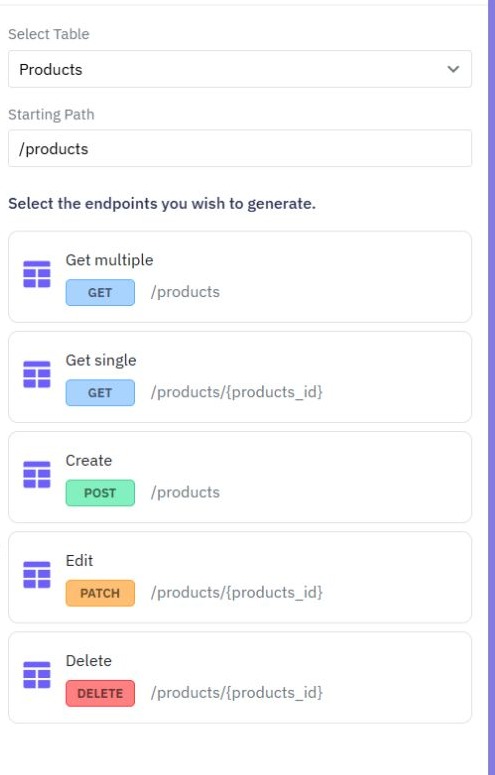
Open API, start endpoint creation, select CRUD Operations and choose the products table. Set a starting path such as /products. Select the list and single-record operations first if clients only need to browse the catalogue.
Open each read workflow and review its database query. In the command's Output tab, use Fields to return to expose only the product fields the client needs. Configure a deliberate response shape and appropriate filtering or result bounds.
Keep creation, editing and deletion protected if you generate those operations. A public catalogue should not become publicly editable just because its source data was public. The CRUD API guide covers the full record lifecycle; the authentication guide covers protected requests.
6. Test and publish the catalogue
Test the read workflows, remembering that the Test sidebar defaults to isolated data. An empty isolated result does not show whether the CSV imported into the live table. Deliberately select Use live data for that read check, or verify the imported records through the published endpoint. Publish the reviewed versions. In the API client, select the actual endpoint, send a request and inspect the status, body and headers. Confirm that expected sample products appear and excluded columns do not.
Try an unknown identifier, an empty result and a query that should return only part of the catalogue. A query input affects the result only when the database command uses it. For private datasets, repeat without a token and as a second sample customer to verify access rules.
If the import fails, check mapping errors, destination field types and unsupported List or Object fields. If the API returns old or unexpected data, check its selected table, filters, output mapping, workspace and published version.
You now have a controlled way to serve imported records. Connect them to a page list using the pattern in the task-app guide, or use the API builder to add business-specific operations.
Go deeper
Supporting documentation
Find the configuration details and reference material behind this page.