

1. Decide what the form needs to collect
This example collects an enquiry rather than enrolling someone in a mailing list. Use synthetic submissions while building it. A submitted enquiry does not by itself establish permission to send unrelated marketing messages. Explain the form’s purpose and link the applicable privacy information next to it.
Create an enquiries table with text fields name, email and message. Twidget supplies the record ID and creation timestamp. Choose which fields are necessary: this example requires email and message and leaves name optional. Avoid collecting phone numbers, addresses or sensitive free-text details without a concrete need.
Keep submitted records private. The visitor needs a create operation and acknowledgement, not a public list or general CRUD interface for every enquiry. The web app builder combines the page and backend; access to stored submissions still needs an intentional permission policy.
2. Validate and save a small request body
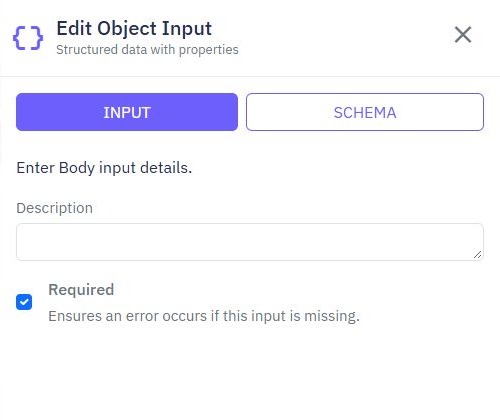
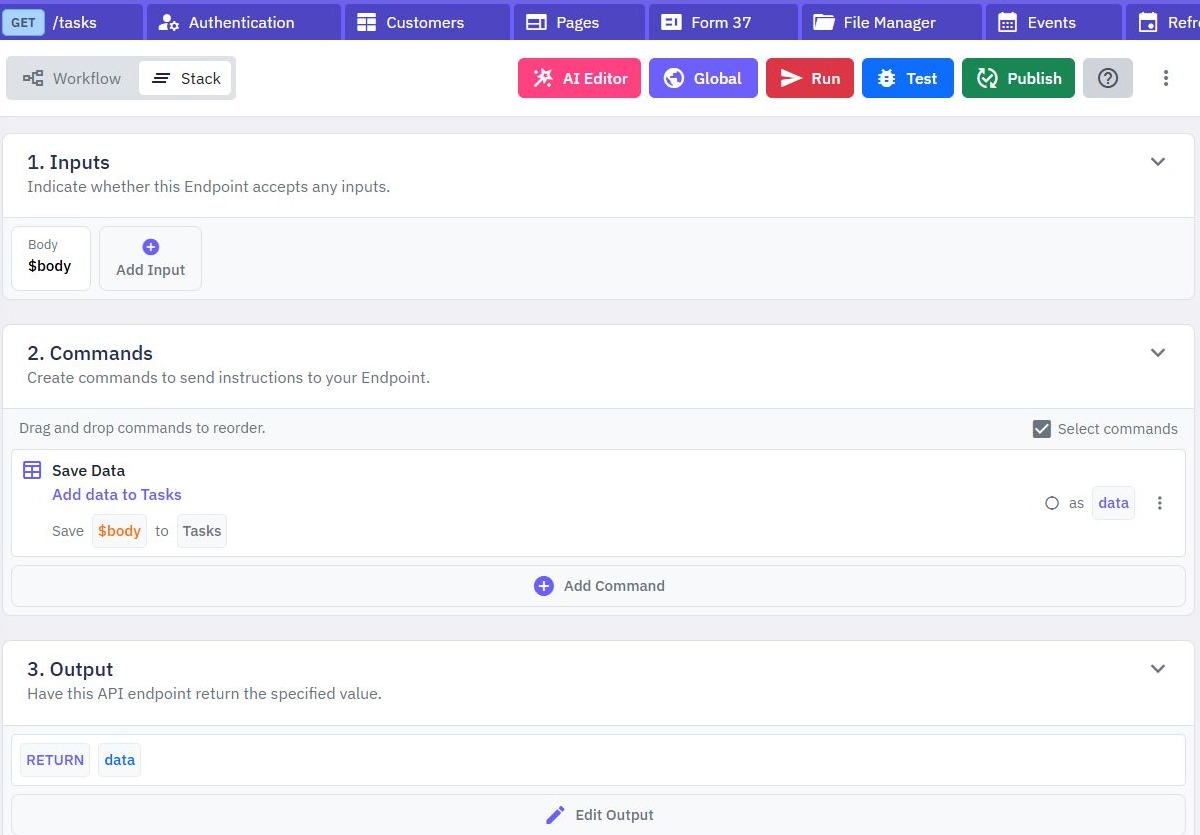
Create a custom POST /examples/enquiries endpoint. Add a whole Body input, mark it required and use its schema to describe the intended fields. This illustrative request uses:
{
  "name": "Sample Visitor",
  "email": "visitor@example.com",
  "message": "Please tell me about the task dashboard."
}
Add Validate commands before Save Data. Require a non-empty message, enforce deliberate maximum lengths and check that the email matches the format your application accepts. A format check does not establish that the sender owns or can receive mail at that address. Do not return “email verified” merely because validation passes.
Configure Save Data for the enquiries table and map the three approved fields explicitly from the body. Do not save the entire untrusted body, and do not let visitors assign administrative fields. Follow API input validation for negative tests and explicit failure messages.
Return a small acknowledgement only after the save succeeds, for example {"received":true}. Review the successful response status, such as 201, in the endpoint’s response settings. A successful acknowledgement should not echo the visitor’s full message or expose other submissions.
3. Put the inputs inside a Form
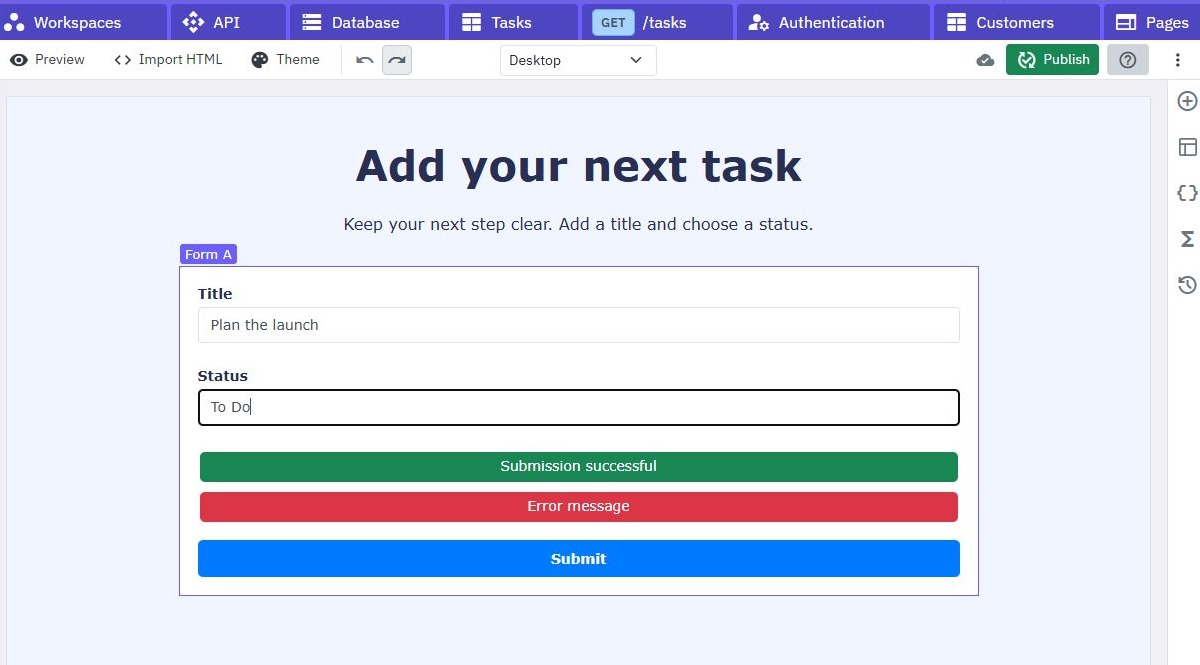
In Pages, create the enquiry page and add a Form with appropriately labelled inputs for name, email and message. Give the fields the exact names expected by the page function. Keep the submitted inputs nested inside the form: only nested inputs are included in its submission payload.
Add a clearly associated submit button, plus visible status text for submitting, success and failure. Keep the message field large enough to review the text before sending. Check labels, keyboard focus and mobile width in preview rather than using placeholder text as the only instruction.
Connect the form’s submission action to a page function that reads the submitted fields and calls the enquiry endpoint. Map the form object to the endpoint contract deliberately. If you changed the API to use different field names, update that mapping; changing a label alone does not rename the request body.
The Page Forms documentation explains nested inputs and submission behavior. The task-app guide shows a related form-to-backend pattern with a separate list interface.
4. Make success and failure states honest
Track a page-level submitting state. On submit, return without starting a second request if one is already in progress, then show “Sending…” while the request runs. Configure the button’s state or visibility accordingly in your page. Reset the submitting state on both the success and failure paths so an error does not leave the form unusable.
Only show “Your enquiry has been received” after the backend confirms persistence. Clear the form after that confirmation, not before the request. On validation or connection failure, keep the entered values and show a message that helps the visitor retry or correct the affected field.
A request may reach the server even when its response is lost. A local button guard prevents rapid repeat clicks in this page session; it does not establish database deduplication across retries, tabs or concurrent requests. If duplicate creation matters, design a request-key and uniqueness policy using the duplicate-processing principles, adapted to enquiry submissions.
These states are page logic you configure, not an automatic guarantee from adding a Form element. Test the actual success and failure branches before publishing.
5. Test saved records and rejected submissions
Preview the page and submit a synthetic enquiry. Verify that one expected record exists in the intended table before treating the success message as correct. Reload the page and inspect persistence separately from the page’s temporary variables.
Try a blank message, an invalid email and an oversized input. Confirm that the backend rejects them even if the page’s browser validation is bypassed. Use the API client to call the endpoint directly: page-only checks do not protect a public submission endpoint.
Test a failed backend request and confirm that the message stays in the form and the button becomes usable again. Click rapidly during one request and inspect whether only one submission begins. Also test an empty optional name, keyboard-only submission and a narrow viewport. Builder isolated tests are useful for command logic, but they do not prove a live record was saved; use clearly labelled disposable live data for that acceptance check.
If a field is missing, inspect its form nesting, field name and endpoint mapping. If success appears without a stored record, inspect whether the success branch runs before the request completes or after an error was caught without being handled.
6. Review abuse controls before public release
A public form can receive requests without your page. Set appropriate input sizes and API rate limits, review failure logs and decide how to handle automated submissions. A disabled button, hidden field or CORS origin setting is not sufficient server-side spam protection. Do not claim CAPTCHA or bot verification unless that check has actually been integrated and verified.
Publish the reviewed backend and page, then repeat the valid and rejected journeys using their public addresses. Confirm that any list or management route remains restricted and that errors do not disclose stored personal information. Decide how long enquiries should be kept and who can review them as part of your application’s data handling.
For a next step, use database-change workflows to create a small internal audit record when an enquiry is saved. Establish that behavior with synthetic data first; this guide does not send emails, add mailing-list subscriptions or notify real customers.
Go deeper
Supporting documentation
Find the configuration details and reference material behind this page.