
1. Define what each customer can see
Build a portal for a small service business: customers sign in, see their own requests and open a request's details. Start with a synthetic customer and a request such as REQ-001: Website update. Decide whether accounts belong to individuals or organizations before designing the interface. An organization portal needs a verified membership rule in addition to a customer ID.
Create a requests table with a title, status and customer reference. Use a separate authentication table for customer accounts. Keep internal notes out of the public response. Follow the authentication guide and record-ownership guide for the backend foundation. Your Twidget editor account is separate from the portal's customer session.
2. Create and review the portal layout
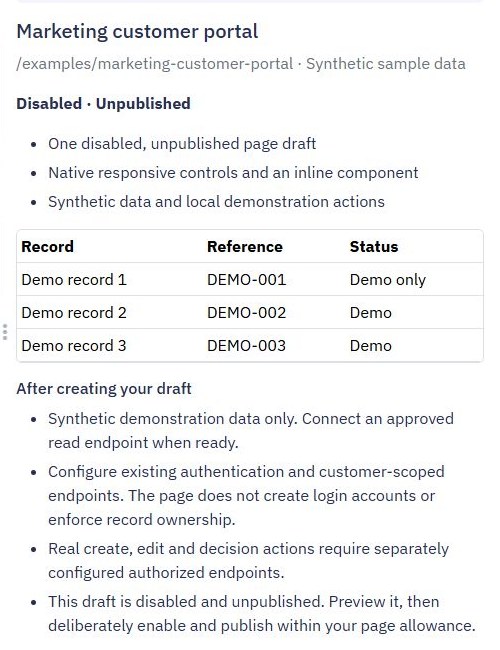
Open Pages → Create Page → Page starters → Customer portal. Give the draft a descriptive name and a path such as /portal. Start with Synthetic sample data, select Review draft and read the resource summary before Create draft.
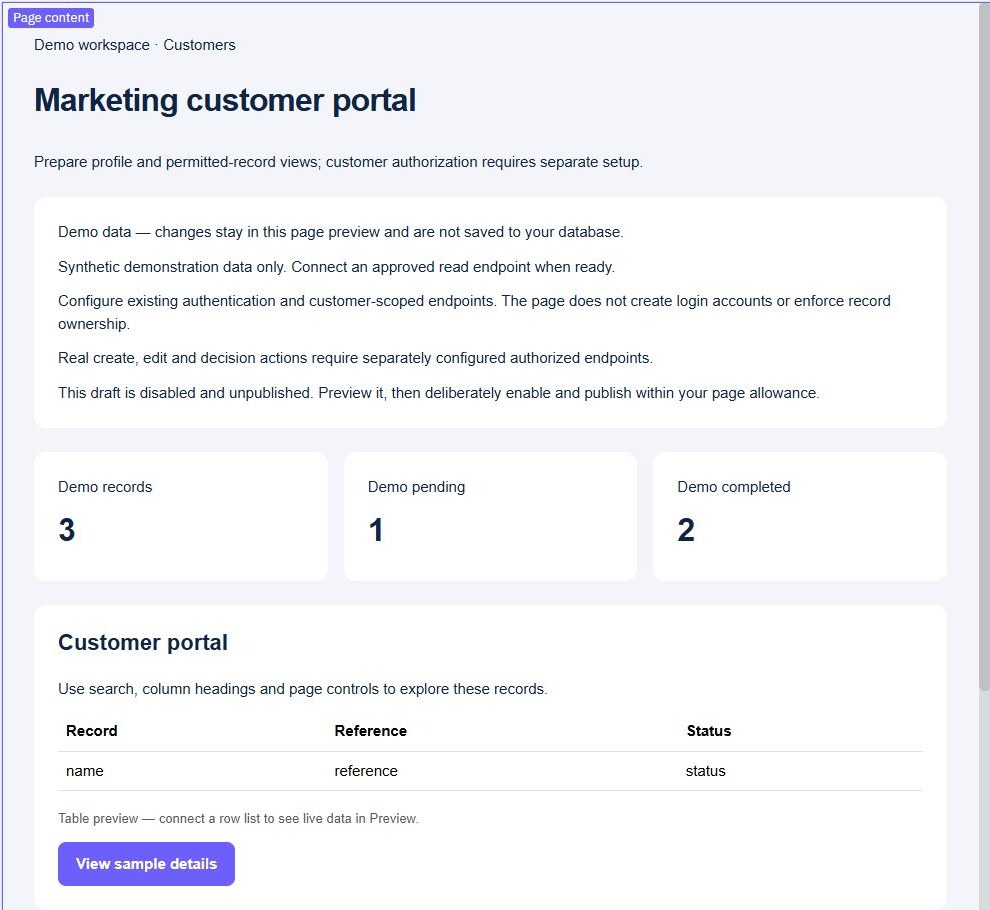
The starter creates a disabled, unpublished page. Its sample table, detail action and form help you inspect the layout; they do not create customer accounts or enforce ownership. In our Marketing example, the three demo records are local sample data. Keep that distinction visible while developing. Preview the layout before replacing the sample records, and retain clear empty, loading and failed-request states.
Prefer to follow the controls on screen? Watch the existing tutorial: create a custom page.
3. Connect customer-scoped read endpoints
Create a protected list endpoint that obtains the authenticated customer on the server and filters requests using that identity. Do the same for detail requests: look up both the requested record ID and its permitted owner. Never trust an owner ID supplied in a query string. Return a bounded list containing only fields the portal needs.
Connect the table to the approved read endpoint and map its actual response list into the table's row data. A starter can offer compatible read-endpoint selection, but selecting an endpoint is not an authorization test. Inspect the returned fields with pagination and filtering enabled. Fetching all customers' records and hiding some in the browser leaves those records exposed.
4. Add forms and private attachments
Replace demonstration actions with explicit page functions that call the intended endpoint. For a new request, allow the title and description, validate them on the server, and derive the owner from the session. After a successful save, reload the list from the backend. Keep entered values when a request fails so the customer can correct the form.
For attachments, use the file-upload workflow. Verify who can upload and retrieve each file; knowing a filename must not grant access to another customer's documents. Keep file permissions and the request-to-file relationship explicit. A visually hidden button does not protect a write endpoint.
5. Test two customers and an empty result
Prepare two synthetic customers with different requests. As customer A, confirm that list, detail, update and file operations cannot reach customer B's records, including when a known valid foreign ID is supplied directly. Repeat while signed out. Check expired-session feedback and the route back to login without exposing credentials.
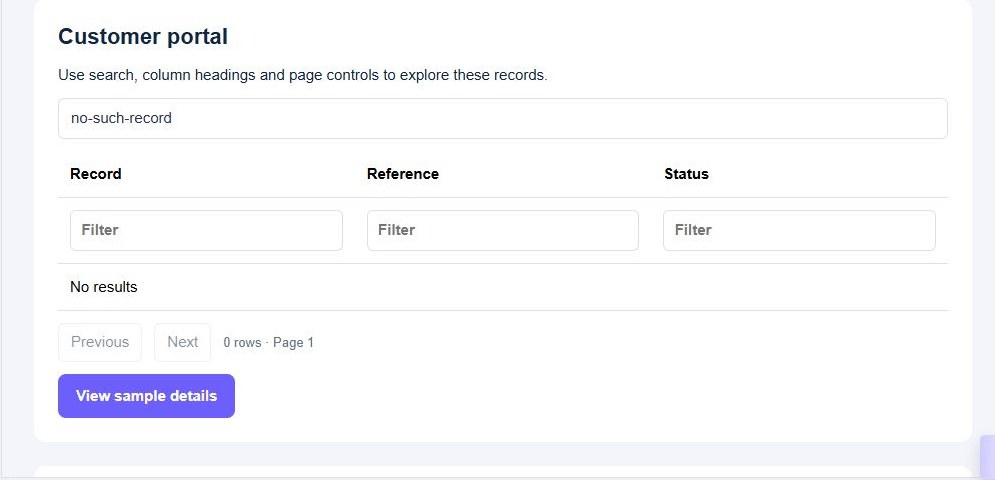
In our captured sample preview, searching for no-such-record displayed No results and zero rows. That verifies the sample table's empty state; it does not establish backend authorization. Repeat the empty-state check after connecting real endpoints, and also exercise a failed request. Review the browser's response data, not just the visible table.
6. Publish the verified customer journey
Review the page, authentication endpoints and private read/write endpoints as one journey. Publish the intended versions and deliberately enable only the reviewed resources. Test the published URLs again with both synthetic customers. Remove demonstration-only controls before customers use the portal.
Keep a documented support path for access problems and failed uploads. Start with requests and details; add billing or organization-wide access only after their separate permission rules are established. The web-app builder connects the interface to your backend, while admin and customer permissions covers staff-only actions.
Go deeper
Supporting documentation
Find the configuration details and reference material behind this page.