

1. Define a small list contract
Start with a tasks table containing title and status, plus Twidget’s system _id. This guide extends the CRUD API example; it focuses on the endpoint response rather than filters applied to the table editor. Use disposable records and a separate endpoint such as GET /examples/task-search so existing consumers keep their current contract.
Use three query inputs: status, limit and skip. For the first version, require status to be one of To Do, In Progress or Complete, require an integer limit from 1 to 50 and a non-negative integer skip. These bounds are example policy choices, not universal Twidget limits.
GET /examples/task-search?status=To%20Do&limit=2&skip=0Return a plain array containing only _id, title and status. An empty result is [], not a database failure. A missing or invalid required input should be rejected before the read. You can add a response envelope later, but update consumers deliberately when changing its shape.
2. Add inputs and validate their bounds
In the endpoint builder, use Add Input → Query for each value. Query references use $queries.status, $queries.limit and $queries.skip. Choose the appropriate type for each input and inspect the actual value in Run & Test. A URL transports text; confirm how the configured Number input handles it before relying on comparisons.
Add Validate commands before the database command. Require the status to match your allowed list, the limit to remain between 1 and 50, and skip to be zero or greater. Also reject fractions and non-numeric values; range checks alone do not establish that a value is an integer. If you have not configured a verified integer check, keep limit and skip fixed to trusted numbers while completing that part of the workflow.
Use Bad Request with a message that identifies the input to correct. Test limit=0, limit=51, limit=1.5, skip=-1 and limit=banana. Do not silently turn an invalid number into an unbounded query. The validation guide explains the difference between declaring an input and enforcing its business rules.
3. Connect the status filter to the read
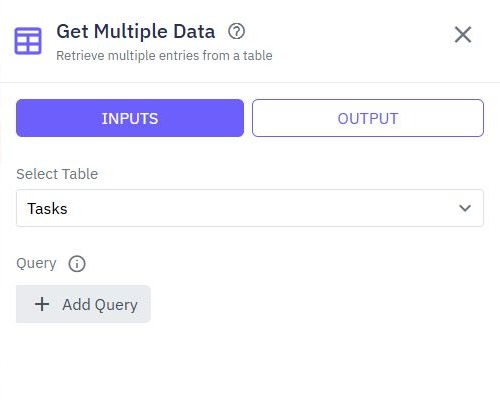
Add Get Multiple Data and select the tasks table. In INPUTS → Query, configure the table’s status field to equal the Input reference $queries.status. The input does not filter anything until this expression is connected to the command.
Use an exact match for this controlled status vocabulary. Sending to do when records contain To Do is a contract mismatch; decide whether to reject or deliberately normalize it. Do not accept raw database query objects from the caller when the public contract promises a single status.
If tasks belong to customers, add an ownership predicate with AND, derived from authenticated context. Apply that same scope to any later count command. Filtering only the returned array after reading all users’ tasks is the wrong place to enforce privacy. Follow per-user data access before exposing private records.
4. Set stable ordering, Limit and Skip
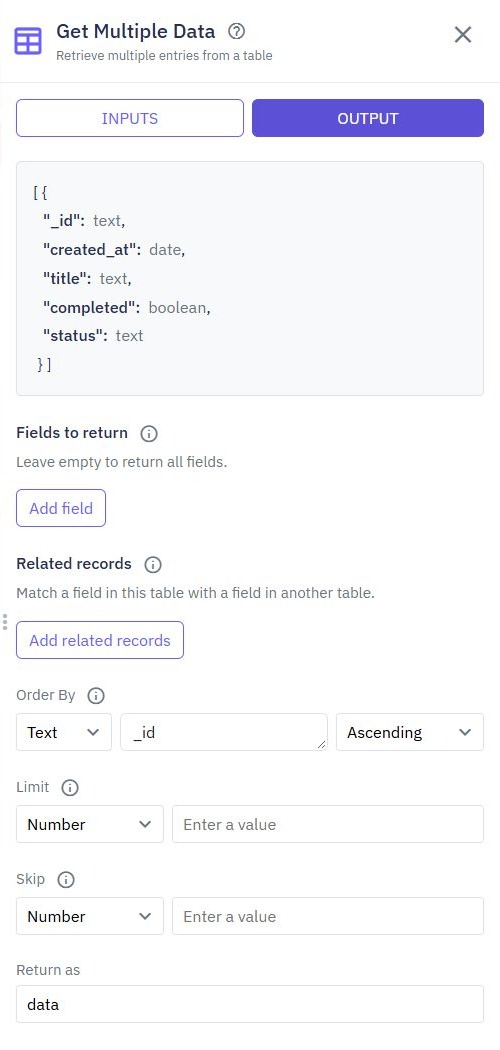
Open the database command’s OUTPUT tab. Set Order By to the literal field name _id and choose ascending order. Set Limit to Input $queries.limit and Skip to Input $queries.skip. Set Return as to matching_tasks, then return that variable from the endpoint.
The current editor supplies one ordering field. A unique _id gives a deterministic order for this exercise; sorting only by status or a non-unique timestamp can leave ties. ID ordering is not a promise about a business deadline. If the application needs another ordering policy, design and verify its tie handling before presenting page numbers as stable.
Under Fields to return, select the three public fields. For two records per page, use skip values 0, 2 and 4. When a response has fewer than two items, that page is the end of the current result set. Exactly two items does not prove that another page exists; request the next page or add a separately scoped count.
5. Check page boundaries with known records
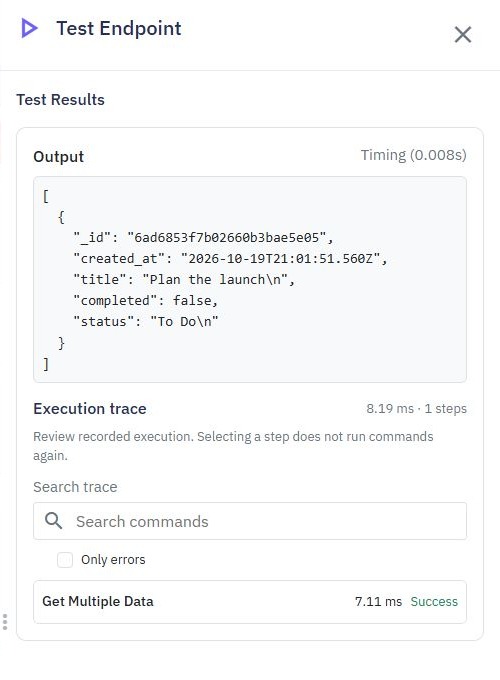
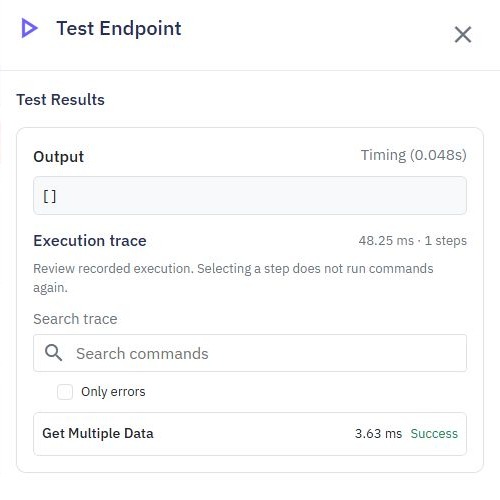
Create five synthetic tasks with the same status and distinct titles. Record their IDs, sort those IDs in ascending order and compare them with calls using limit=2 and skip 0, 2 and 4. Expect two, two and one matching records. A call with skip 5 should return an empty array. Across a fixed dataset, the pages should contain each expected ID once.
Repeat with another valid status that has no matching records. This is a useful empty-state check without permitting an arbitrary status. Repeat the invalid inputs from step 2 and inspect execution tracing to confirm rejection happens before retrieval. Isolated builder data and live workspace data are separate: enable Use live data only for intentional reads of the synthetic table.
Offset pagination describes positions in the current result set. Inserts, deletions or status changes between requests can shift those positions, even with stable ordering. This example does not provide a snapshot or cursor contract. Keep a fixed dataset during the boundary test, then decide whether your application tolerates changes while users browse.
6. Publish the contract and connect the client
After review, publish the intended endpoint and inspect its actual HTTP status and body through the API client. If every request returns the same tasks, inspect the Query mapping. If page sizes are ignored, check that Limit uses the input reference rather than literal text. If builder tests pass but the caller sees old behavior, check the workspace and published version.
In a frontend, reset skip to zero whenever the user changes the status filter. Keep the filter and page inputs together when constructing the request, encode query values and show separate loading, empty and failure states. The React connection guide supplies that browser-request pattern.
You now have a bounded list endpoint in the API builder. Before accepting client-selected sorting fields or larger pages, review the allowed fields, query cost and request-limit policy rather than exposing unrestricted database controls.
Go deeper
Supporting documentation
Find the configuration details and reference material behind this page.