

1. Define the numbers before designing the page
A dashboard is useful when the reader knows what each number includes. Start with two metrics: the count of paid orders and the total value of those paid orders in a chosen period. This guide uses synthetic records and a summary endpoint; it does not require a particular chart component.
Create an orders table with reference and status text fields, an amount number field and an order_date date field for the business date. Twidget already supplies created_at as a system field; keep it separate from the date the order belongs to. Store amounts as integer minor units in one currency: for GBP, 1000 means £10.00. Do not sum different currencies together or store formatted labels such as £10 in the number field.
For a disposable example, add two paid orders worth 1000 and 2500 on 2 October 2026, plus one pending order worth 900 on the same date. A paid-only October summary should count 2 records and total 3500 minor units. These are the expected values for that fixture, not a benchmark or a claim about your data.
If your table does not exist yet, start with the database and CRUD setup. Use a separate test workspace so a demonstration cannot change real sales reporting.
2. Calculate a count and total in the workflow
Create a custom GET endpoint with a path such as /examples/order-summary. Add Summarize Records and choose the orders table. In INPUTS, set the query to match status equal to paid. The spelling and capitalization must match your stored values.
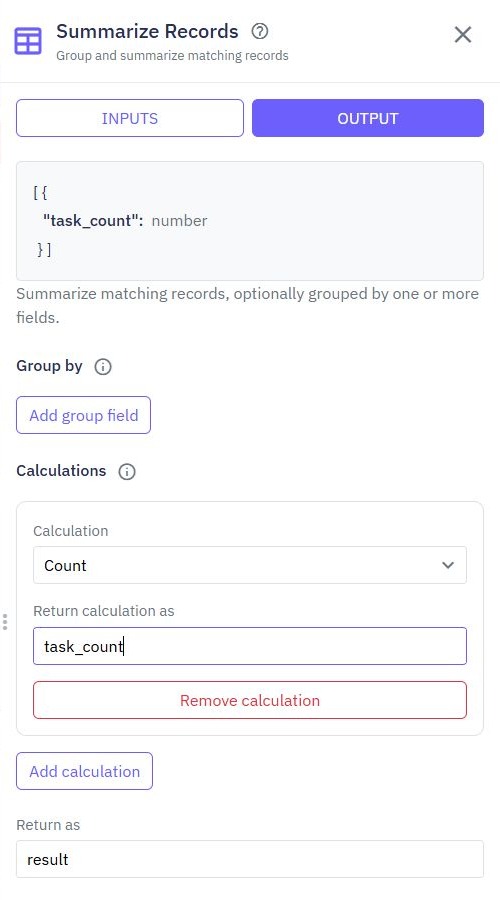
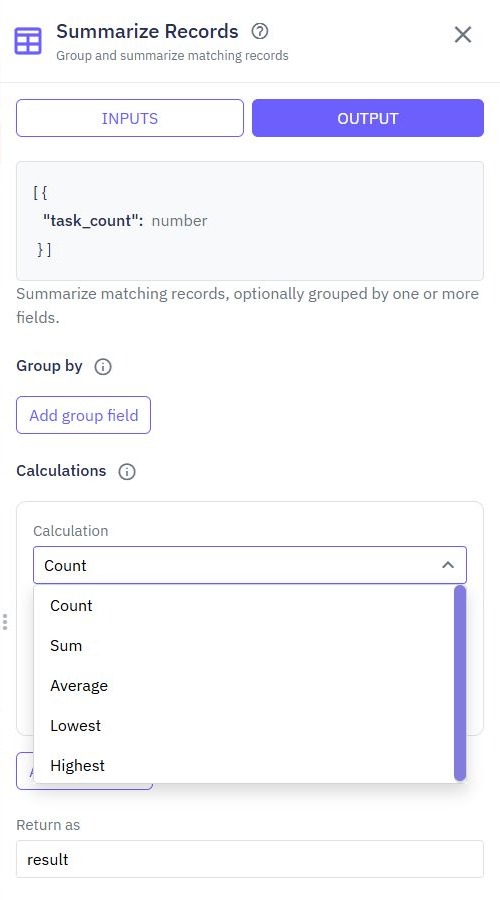
In OUTPUT, choose Add calculation. Set Calculation to Count and Return calculation as to paid_count. Add a second calculation: Sum, Number field amount, and result name paid_total_minor. Give the command a distinct Return as name such as order_summary.
Leave Group by empty for a single combined summary. Grouping by status or category produces separate rows and changes what the interface must read. Use a named result for every calculation so one field cannot overwrite another.
Run the draft with disposable data and inspect the complete returned value. A summary command returns summary rows; do not assume the endpoint automatically returns a flat object. Configure Output deliberately, and verify where paid_count and paid_total_minor appear before binding them to a page. The summary documentation explains grouping and the available calculations.
3. Make the reporting period explicit
For an October 2026 report, combine the paid-status condition with order_date on or after 2026-10-01T00:00:00.000Z and before 2026-11-01T00:00:00.000Z. Use an inclusive start and exclusive end. This avoids guessing the last millisecond of a month and keeps adjacent periods from overlapping.
For a selectable period, add named query inputs such as from and to to the endpoint, then map them into the date conditions through the input picker. Validate that both values are dates, that the end follows the start and that the permitted range suits your application. The request-validation guide shows how explicit rules fit before database work.
Label the reporting timezone in the interface. UTC midnight is not always midnight in a customer's local timezone. If the business reports by local calendar day, convert its boundaries intentionally before querying rather than changing the text label alone.
Apply the same period and status filters to every metric in a card group. A total for October beside an all-time count creates a convincing-looking but misleading dashboard. If you add a detailed order list, use the same conditions and bounded pagination instead of downloading every record to calculate totals in the browser.
4. Bind the summary to a small dashboard page
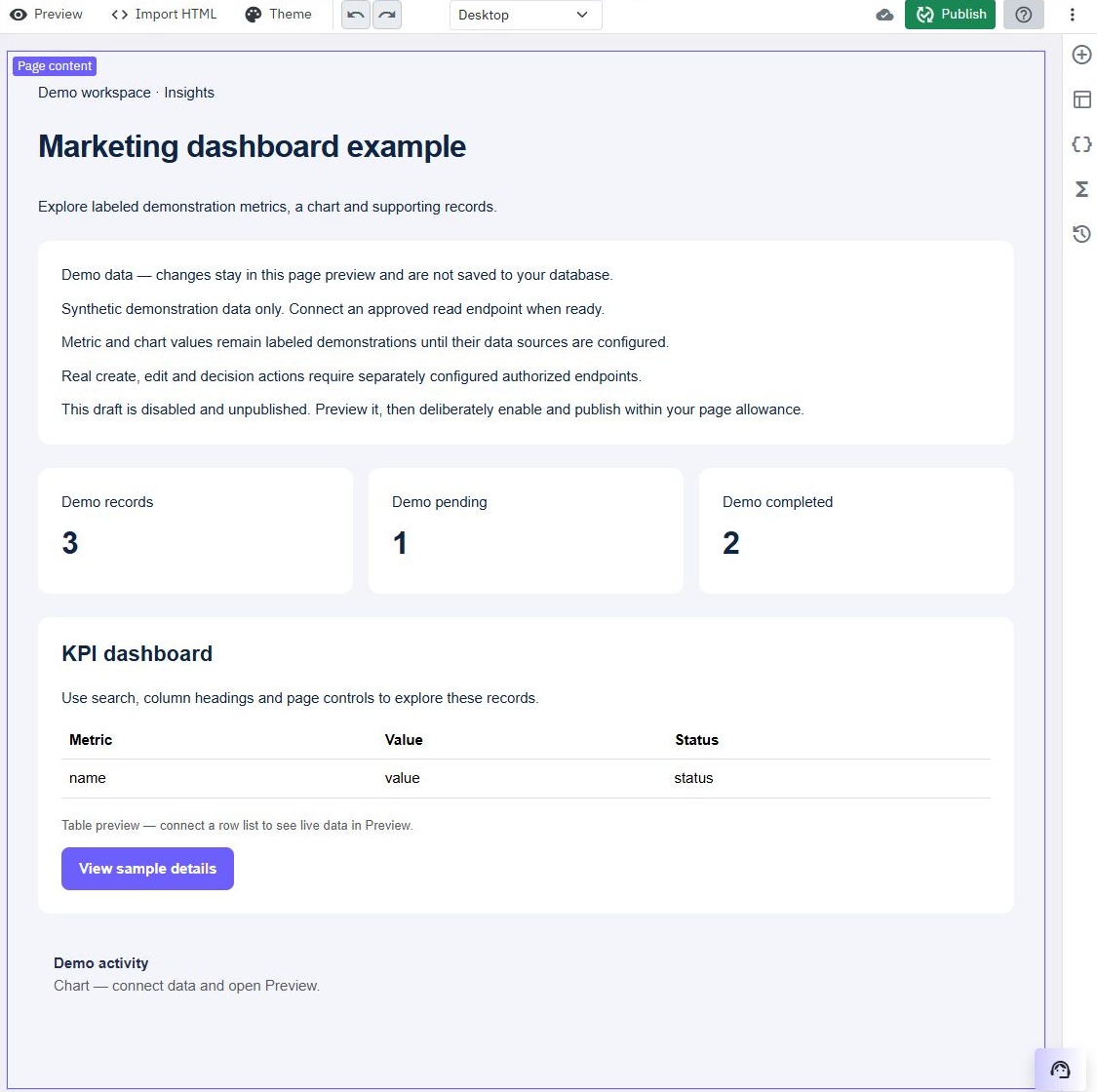
In Pages, create a custom page for the dashboard. Alternatively, Create Page → Page starters → KPI dashboard provides a disabled, unpublished layout with explicitly labeled synthetic sample data. Review the draft before creating it. Its sample metric cards and chart remain demonstrations until you configure their data sources; they are not an Orders revenue calculation. Start with a heading, a visible period label, two text values and a refresh button. A readable total and count are enough for the first version; choose charts only after verifying the components and data shape available to your page.
Create page variables for the summary, loading state and error message. In a page function, call the summary endpoint with Send HTTP Request, inspect its response and update the summary variable from the returned JSON body. Keep the response envelope separate from the body itself. Use the variable picker to bind each text element to the specific metric in the inspected result, rather than typing an assumed field path.
On the refresh button, add a Run Function action for that page function. Set loading before the request and clear it after success or failure. While loading, show a short progress message and prevent repeated refreshes. Format the integer amount for display in the chosen currency while keeping its stored value numeric.
The precise variable path depends on the endpoint output you chose in step 2. If it returns a summary array, select its first result only after checking that it exists. If you prefer your own frontend, the React connection guide covers fetch errors, browser CORS and response validation. The web-app builder overview introduces the page and function tools used here.
5. Treat empty data and failed requests differently
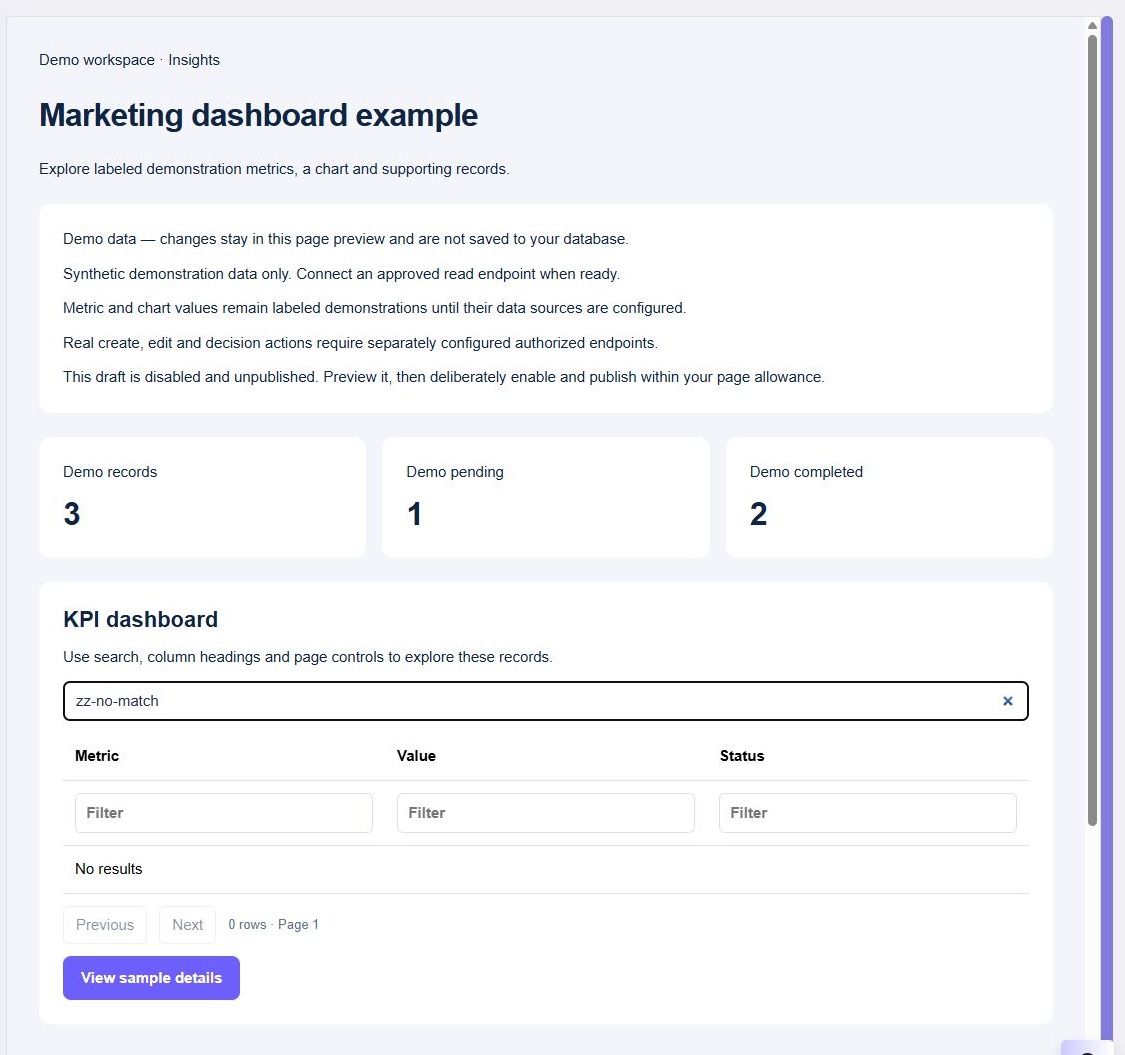
An empty summary can be a valid result when no records match. Display 0 orders and a zero total only after a successful request confirms there is no matching data. Show a label such as “No paid orders in this period” so the result is understandable.
A failed request is different. Keep an error message and a retry action; do not silently turn a network failure, rejected session or invalid period into a zero-sales report. If you retain previous values during refresh, mark them with the last successful update time and state that the refresh failed.
Test a period with the two known paid orders, a period with no orders, a boundary-date order and a request that fails. For the fixture in step 1, the paid October result should remain two orders and 3500 minor units even though a pending order exists. Add one paid record exactly at the next month's start and confirm it is excluded.
If a total is unexpected, first check status spelling, date types, timezone boundaries and numeric amounts. Then compare the matching records with the summary. A sum of a paginated browser list is not an independent check of the entire table.
6. Protect the data and verify the published version
Use public access only for intentionally public, synthetic data. A dashboard containing customer sales or internal operations needs authentication on its endpoint and a backend scope for the current user or organization. Hiding a page element does not prevent a caller from requesting the data directly.
Apply ownership conditions before summarizing, rather than filtering private results in the browser. Read the per-user record-access guide before introducing customer-specific totals. When reports include project or customer information, the related-table API guide explains how references and selected fields affect the response.
Publish the reviewed endpoint and page in the intended workspace, then repeat the normal, empty, unauthorized and error checks through the actual URLs. Draft workflow output alone does not prove the browser is calling the new published version. Inspect CORS only if the frontend uses a different origin; CORS does not replace authentication.
Keep the first dashboard narrow. Add more metrics only when you can state their definitions, access rules and expected fixture results. The backend overview connects these summary workflows with the rest of your application's data operations.
Go deeper
Supporting documentation
Find the configuration details and reference material behind this page.